ProductsGA MX HelperGA Wire HelperGA Build HelperNEWAll pricing & bundles
One-time purchase. No subscription · no monthly fees · no renewals — buy it once, it’s yours.
CURRENT GA MX HELPER VERSION: 2.2.0

Everything GA MX Helper does

Organized by what you'd actually reach for on a job — not a spec sheet.

Every screenshot on this page shows the app's own built-in sample data — not a real aircraft, shop, or customer.

What's in the base app, and what isn't

Everything on this page is included in GA MX Helper unless it carries one of these labels. The add-ons are optional, bought once, and can be added later — nothing on this page is a subscription or a trial.

  • Flight Data Add-On Pilot-facing features: flight checklists, V-speeds, placards, performance data, the airport directory and the E6B.
  • Engine Analytics Engine monitor imports and trend charts.
  • With GA Wire Helper Appears once the companion wiring app is linked.

Inside the app these are marked with a ✦, and Settings → License lists exactly what your installation includes.

Aircraft Records

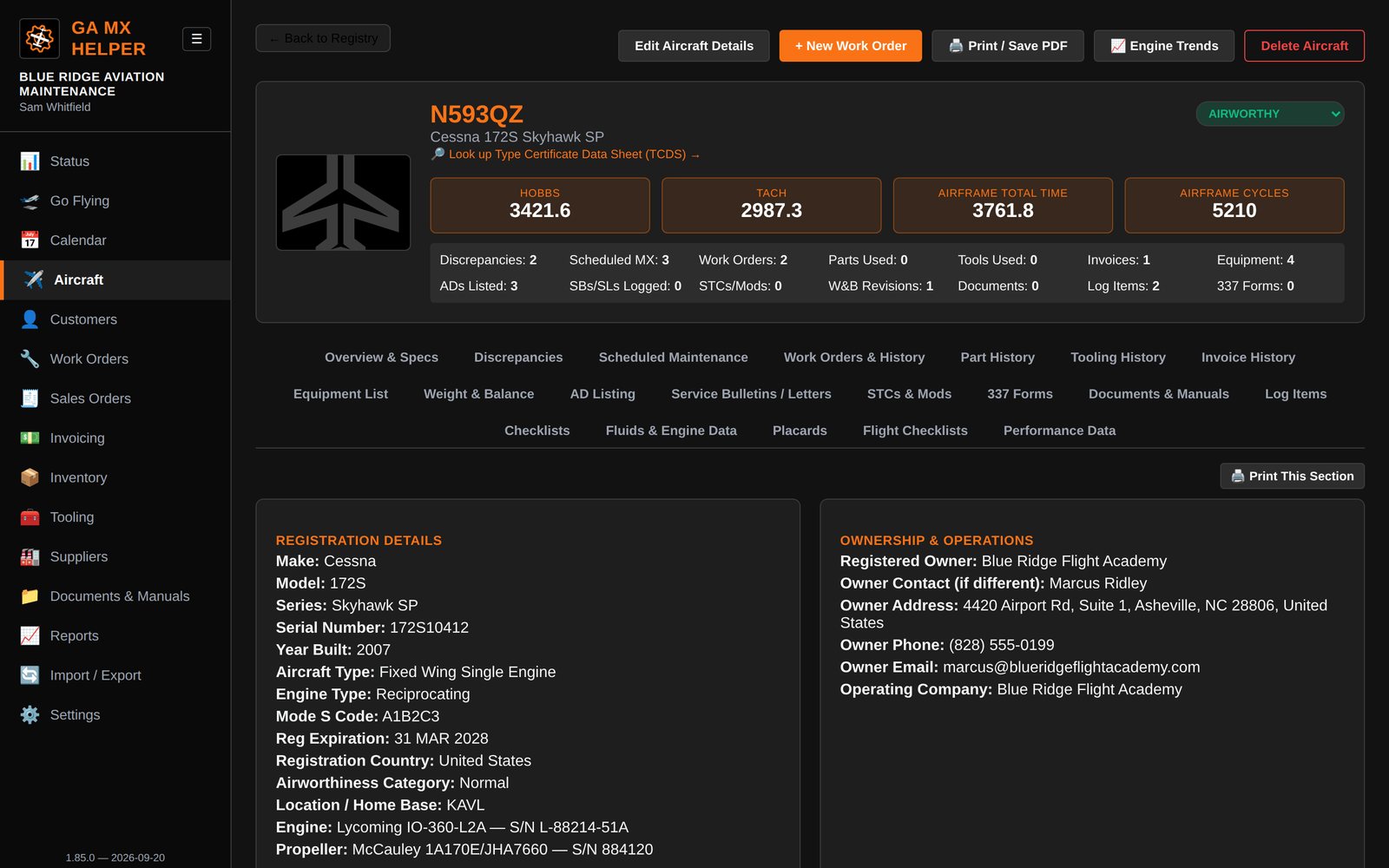
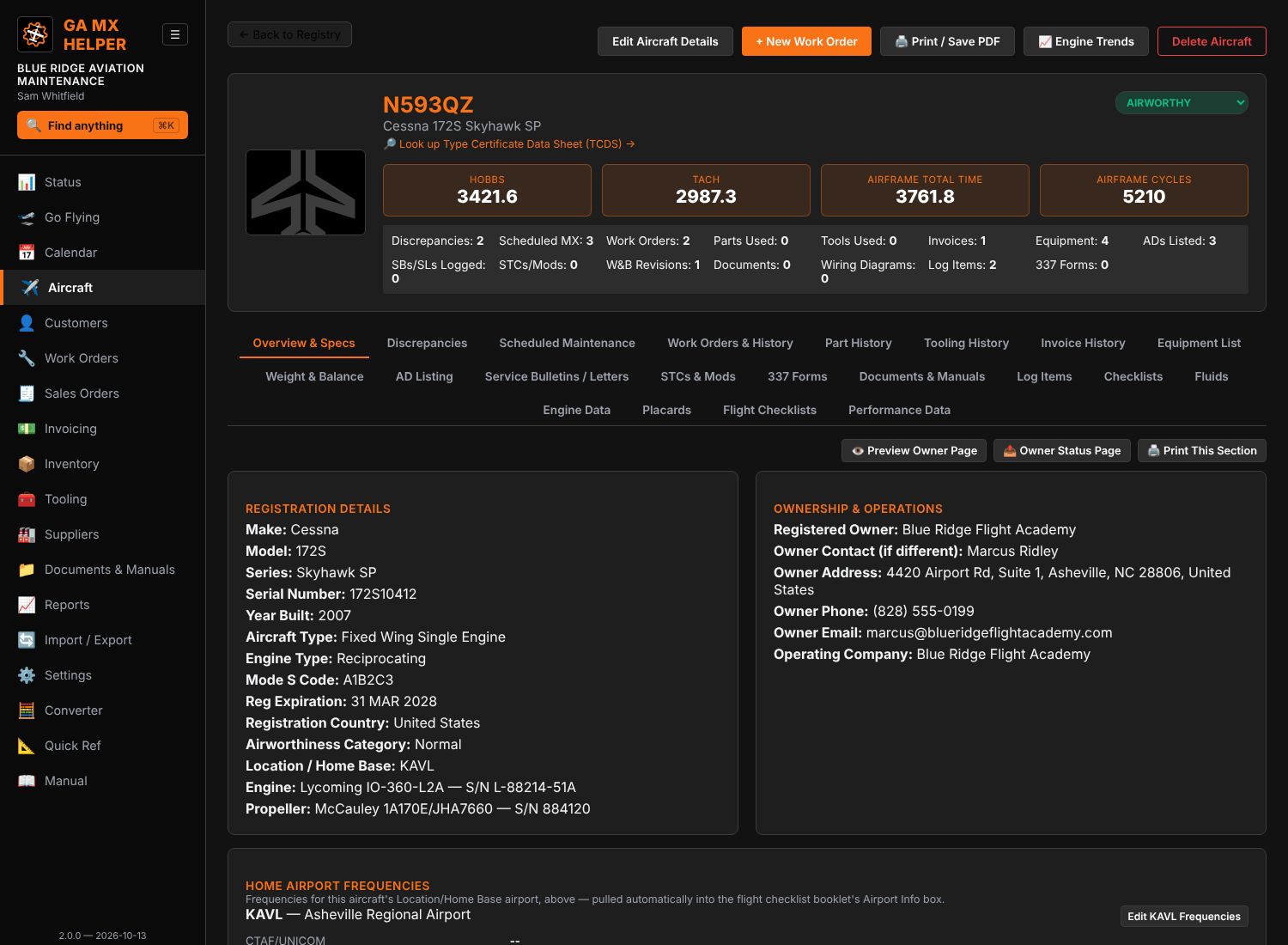
  • Full aircraft profiles: registration, make/model, engine & prop details, total time, and a complete Equipment List with time/cycles since install
  • AD tracking with multiple recurring intervals per AD (100 hours OR 12 months, whichever comes first), full compliance history, and a Specific Date option
  • Weight & Balance with revision history and a visual CG envelope chart
  • STCs, Form 337s, and Documents — all attached directly to the aircraft they belong to
  • Fills FAA Form 337 and Form 8010-4 as real, submittable government PDFs — reviewed before anything is finalized
Aircraft records overview
New in 1.85.0

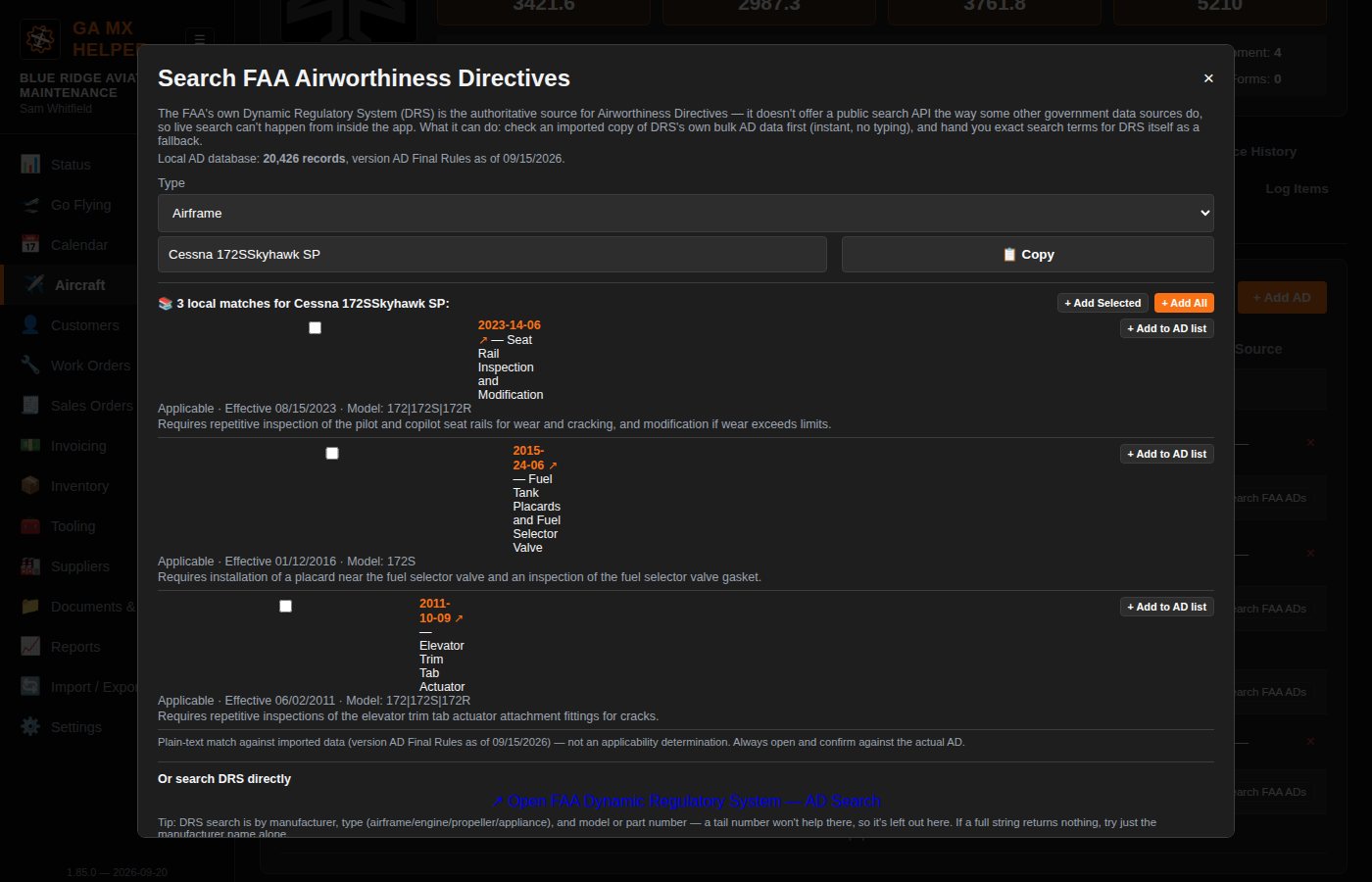
Offline AD Database Import & Local Matching

Import the FAA's own AD dataset once — the file DRS gives you works directly, .accdb, .csv, or .xlsx too, no conversion step. Matching runs entirely in your browser, and results can be added one at a time or all at once.

AD Search local matches

Go Flying

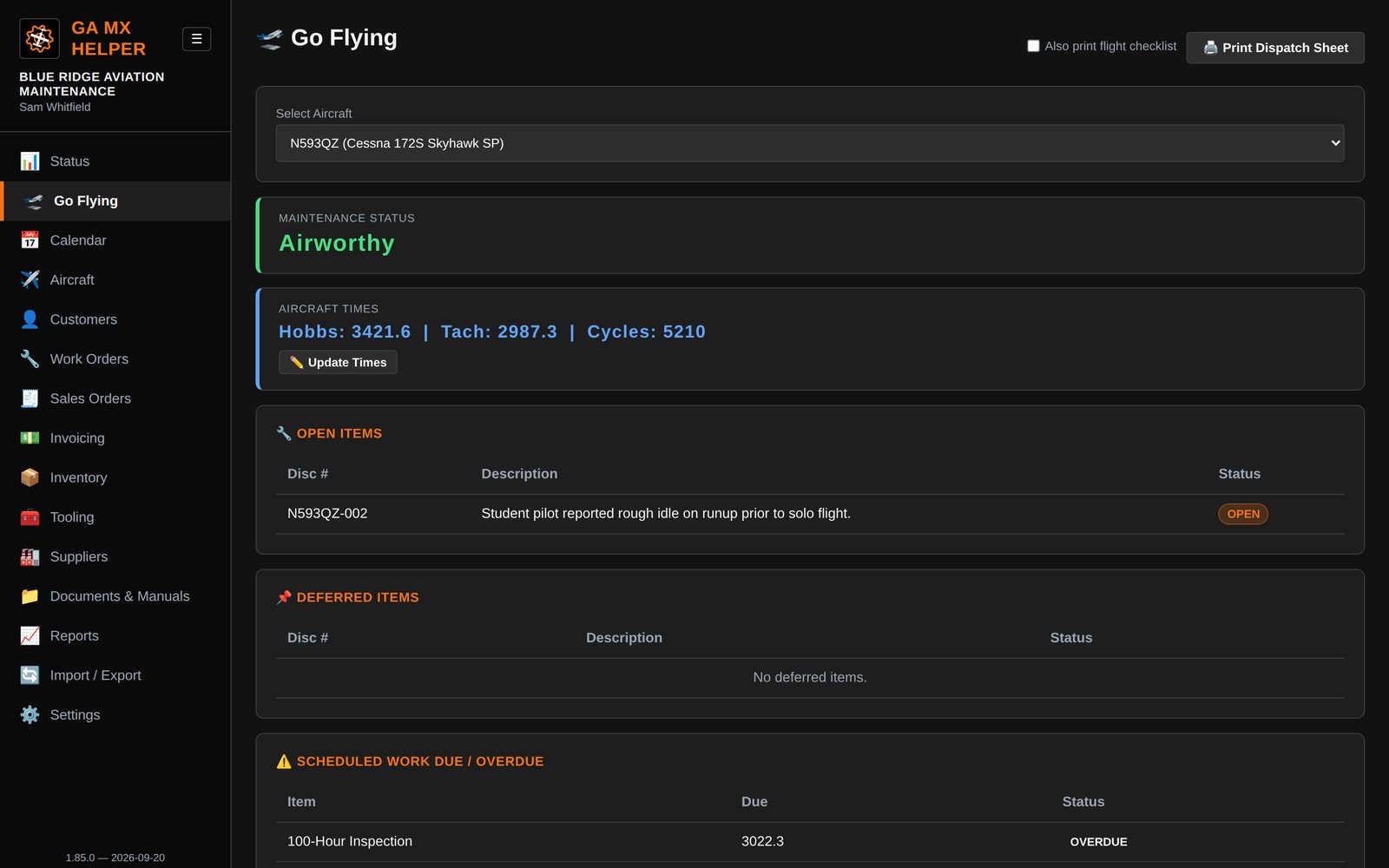
  • A day-of-flight dispatch view: maintenance status, open discrepancies, current fuel/oil — one place, before you fly
  • Fuel and oil entries calculate their own weight, so Weight & Balance loading is fast
  • A printable dispatch sheet pulling current status straight from your records, with a checklist supplement and post-flight times block
  • Flight Data Add-On: an E6B-style calculator with density altitude and one-tap home-airport selection
Go Flying dispatch view
Optional Upgrade

Engine Analytics

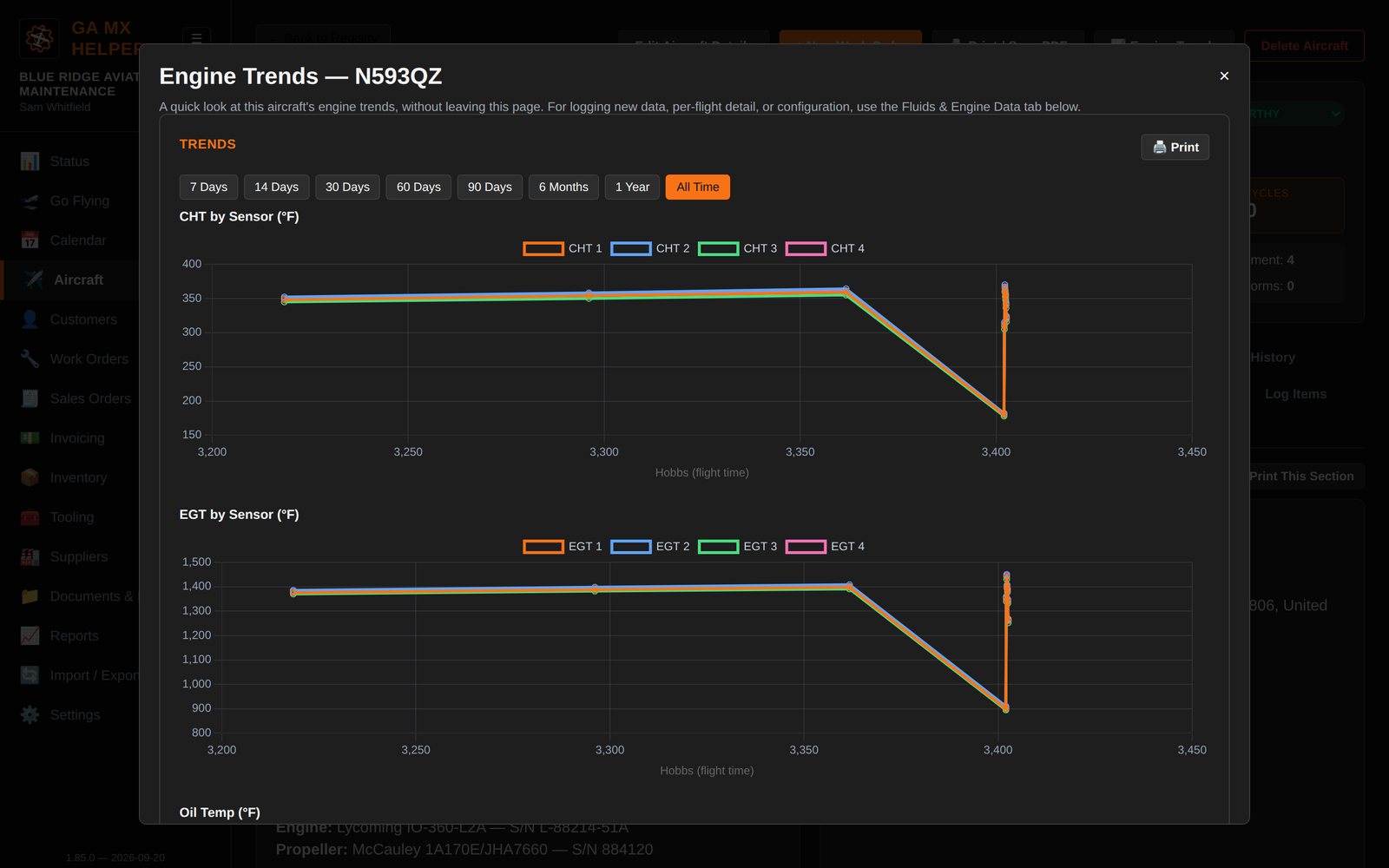
Log CHT, EGT, oil temperature and pressure, RPM, fuel flow, and more — by hand or imported straight from your engine monitor's CSV export (Dynon, Advanced Flight Systems, Electronics International, and most others). Nothing is averaged on import; multi-flight files split automatically. Automatic trend charts across an aircraft's whole history, plus a detailed single-flight view.

Engine trend charts
Flight Data Add-On

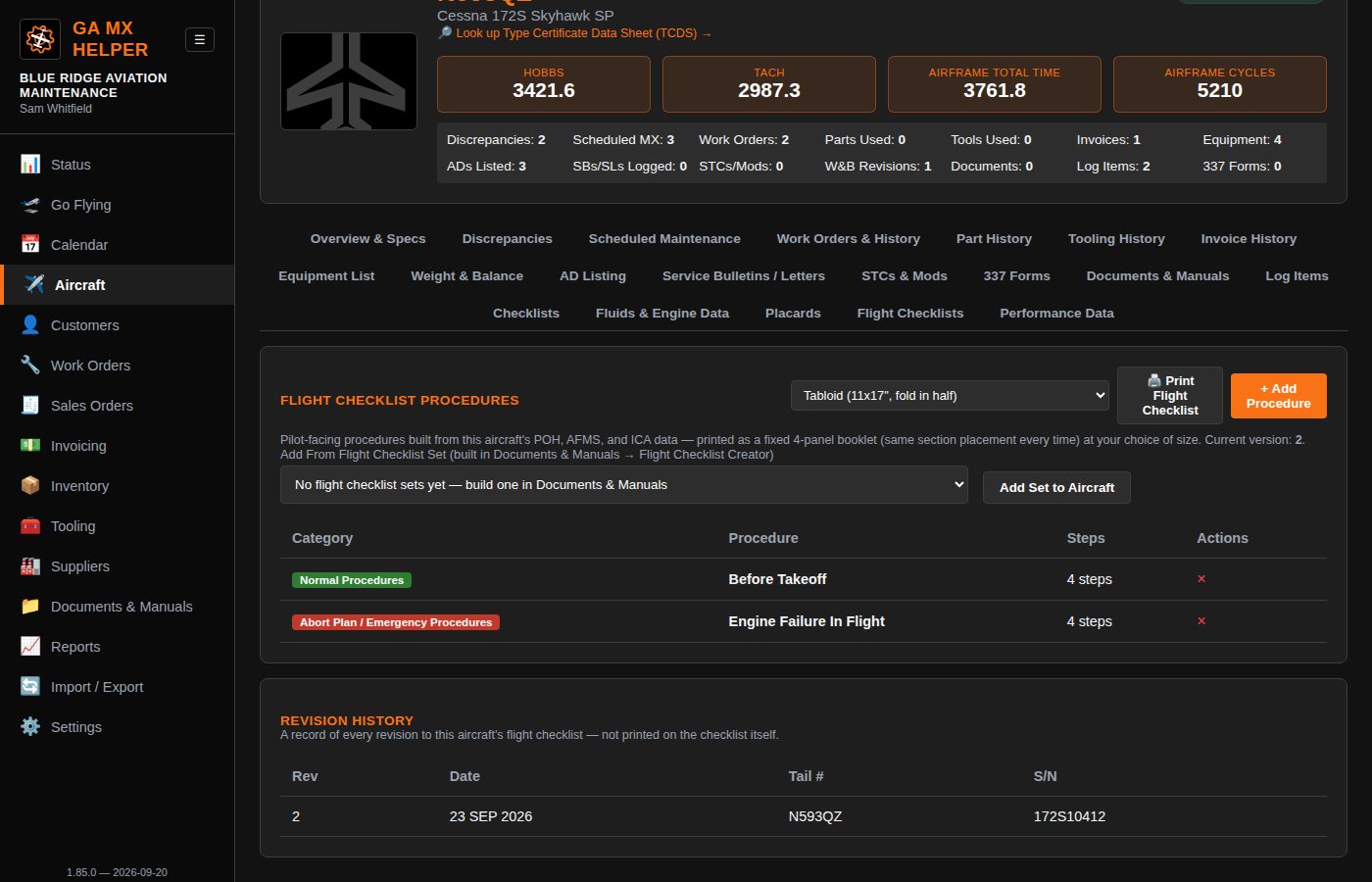
Flight Checklists, V-Speeds & Airport Directory

Build a pilot-facing checklist — normal procedures, emergency procedures, V-speeds — and print it as a foldable booklet at Tabloid, Letter, or Pamphlet size. Weight & Balance, V-speed and home-airport frequency boxes fill themselves in and size to fit, and every revision is logged with its own date and revision number. An airport frequency directory (CTAF, ATIS, Approach and more) keeps each field's numbers in one place.

Flight Checklists tab
Flight Data Add-On

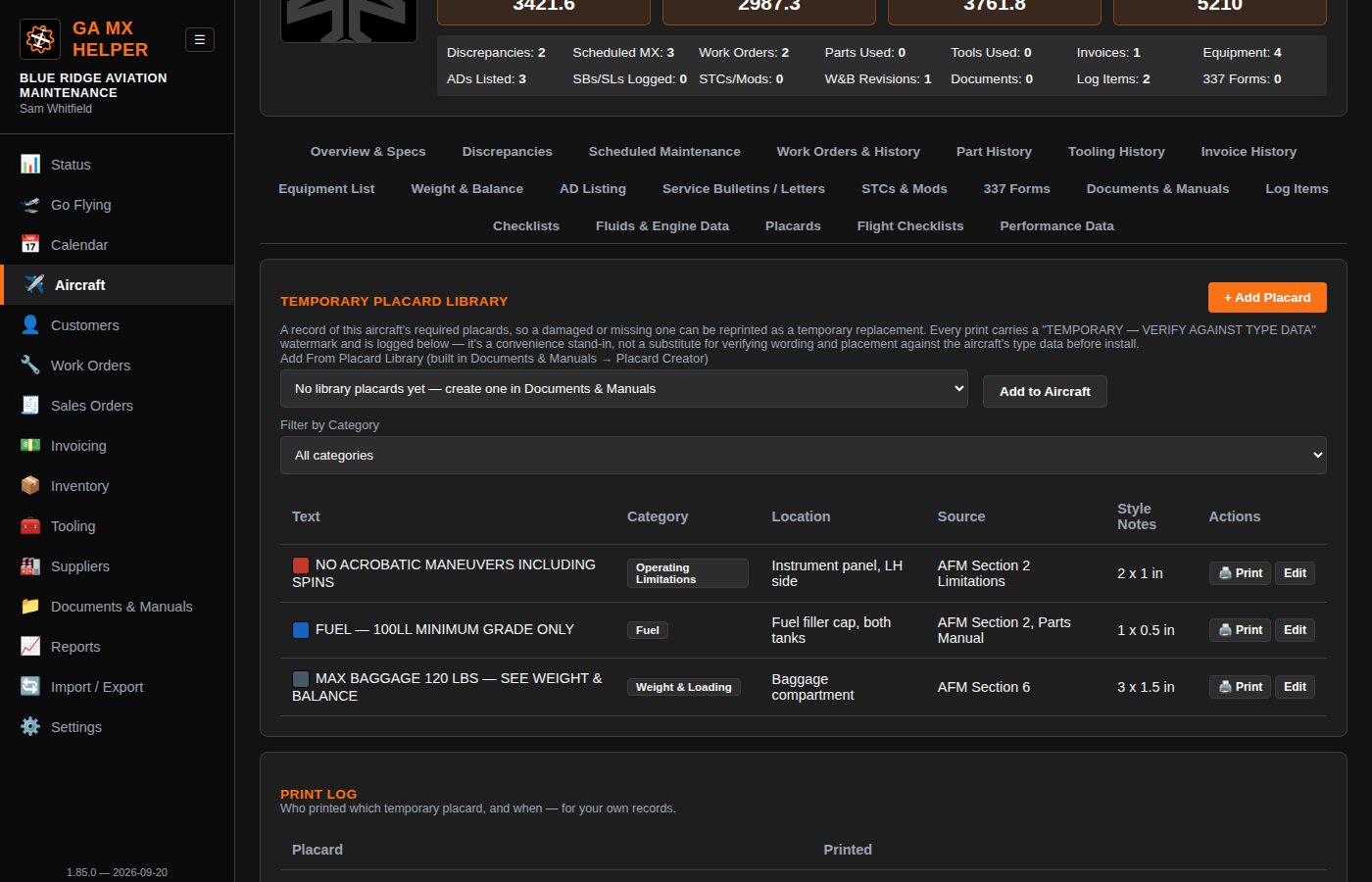
Temporary Placards

Keep a library of an aircraft's required placards — text, location, source reference, style — so a damaged or missing one can be reprinted as a labeled replacement instead of tracked down from a filing cabinet. Organize by category and filter as the library grows.

Placards tab
Flight Data Add-On

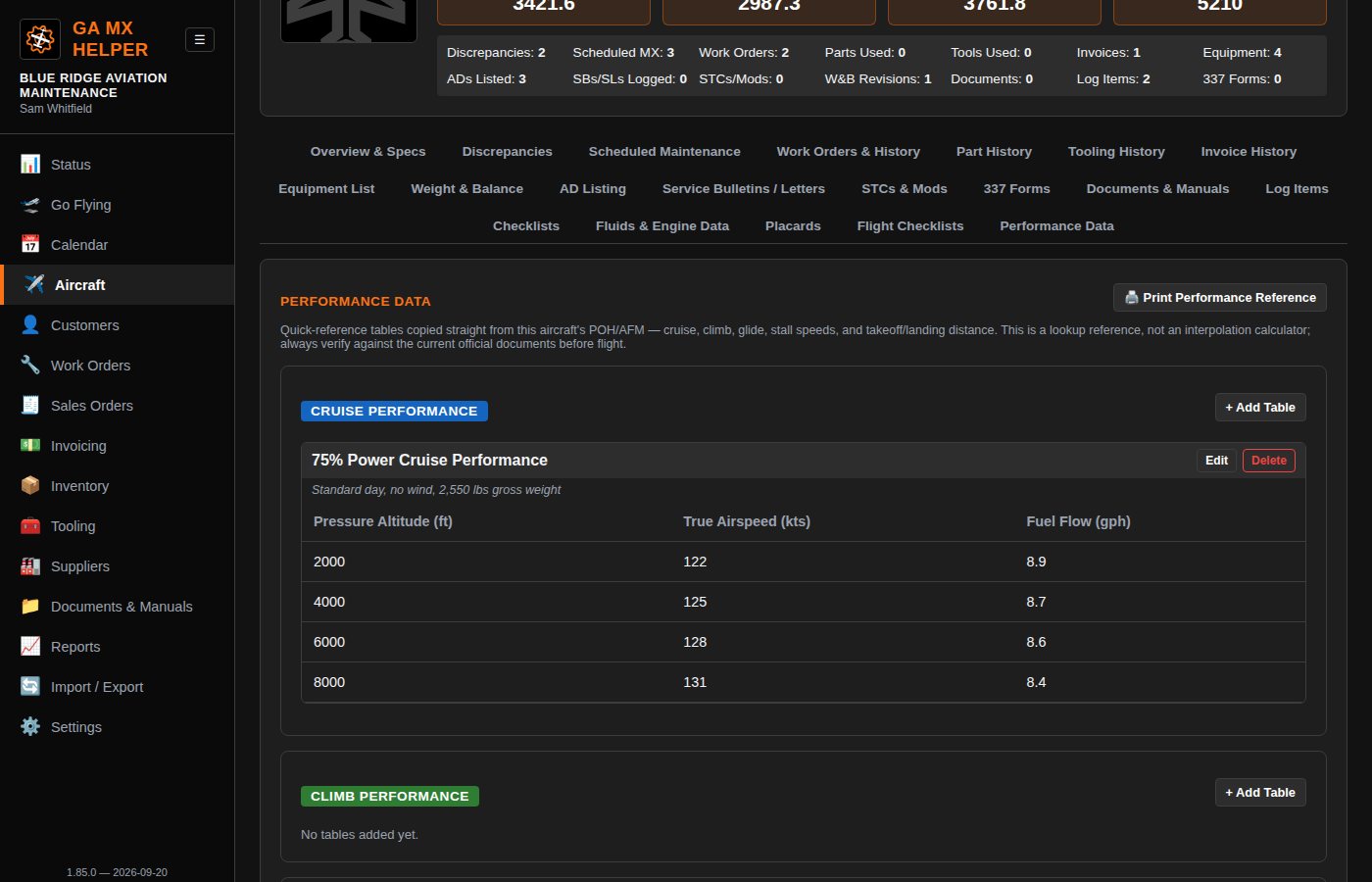
Performance Data

Quick-reference tables for cruise, climb, glide, stall speed, and takeoff/landing distance — transcribed straight from your aircraft's POH/AFM, now with bar and line charts. Not a flight planner, just a fast lookup, with its own printable reference sheet.

Performance Data tab
With GA Wire Helper

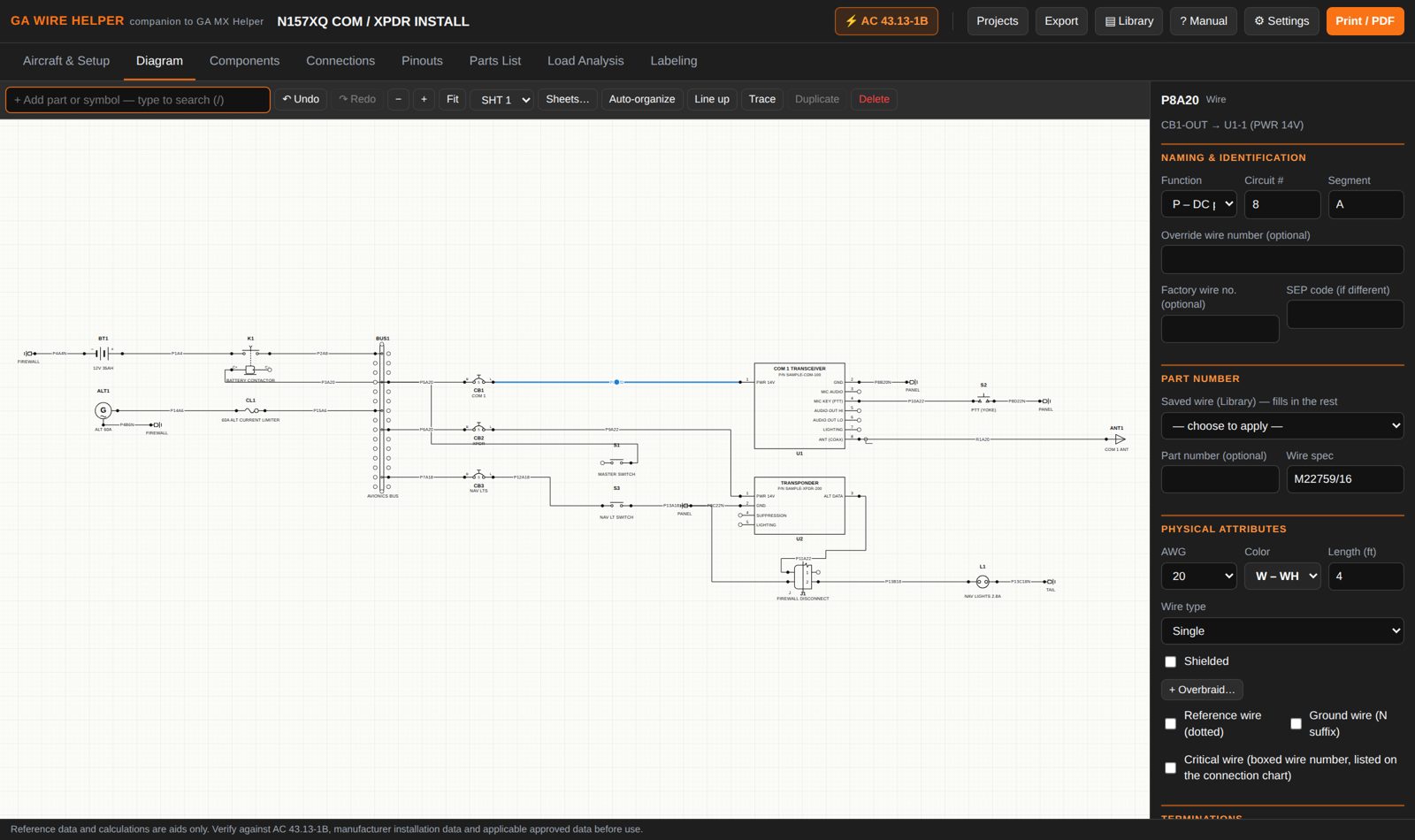
Wiring Diagrams, filed with the aircraft

Each aircraft profile gets a Wiring Diagrams tab listing every diagram and PDF made for that tail number in the companion app, GA Wire Helper. "+ New Wiring Diagram" opens it with the aircraft already filled in. The tab only appears once GA Wire Helper is linked.

GA Wire Helper diagram

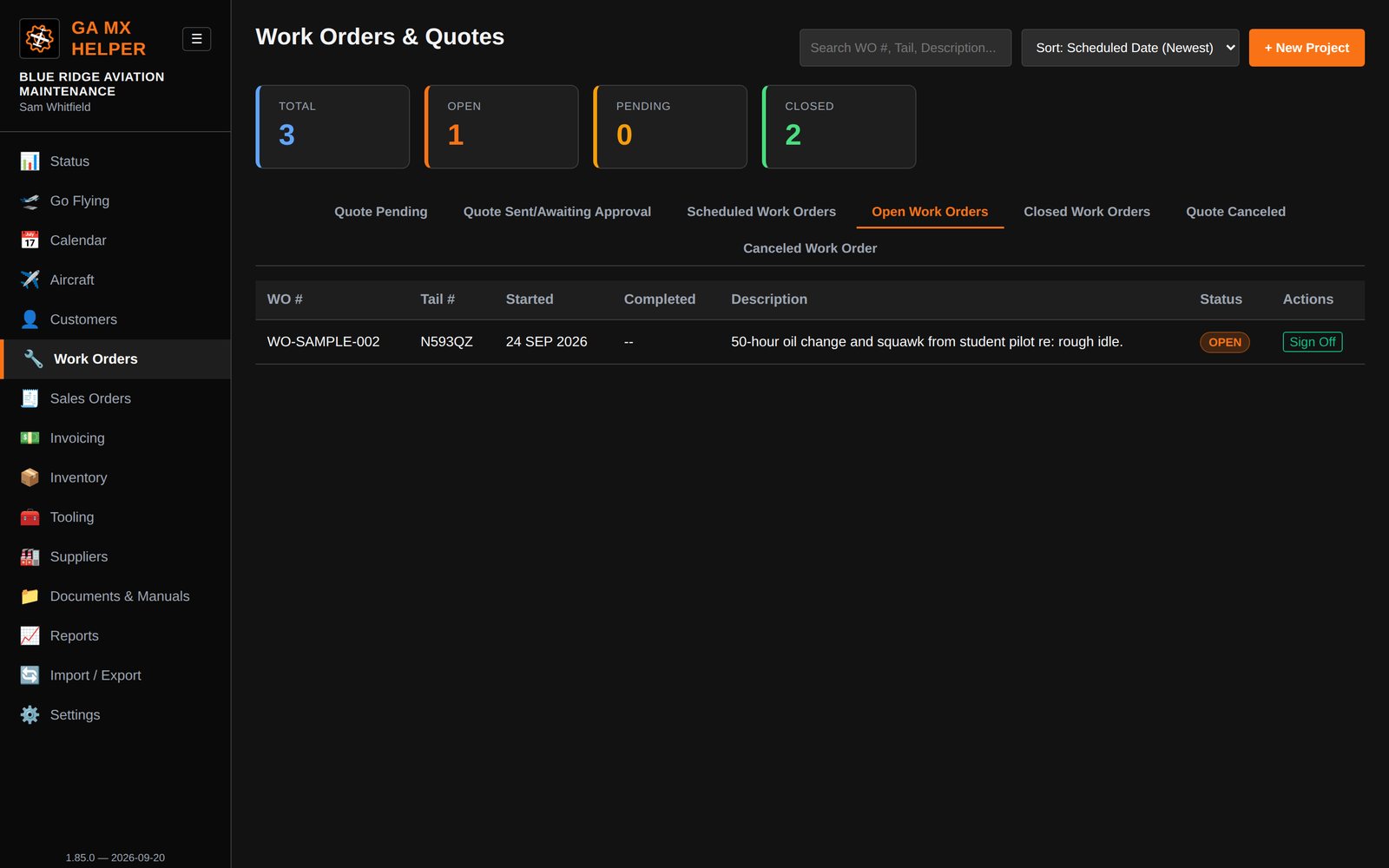
Work Orders & Discrepancies

  • Full discrepancy tracking: corrective action, parts used, labor logged with a live time clock, photo attachments
  • A built-in quoting system — estimate a job, send it, convert an approved quote straight into a work order
  • Traveler sheets for field work, pre-filled and ready for handwriting
Work Orders

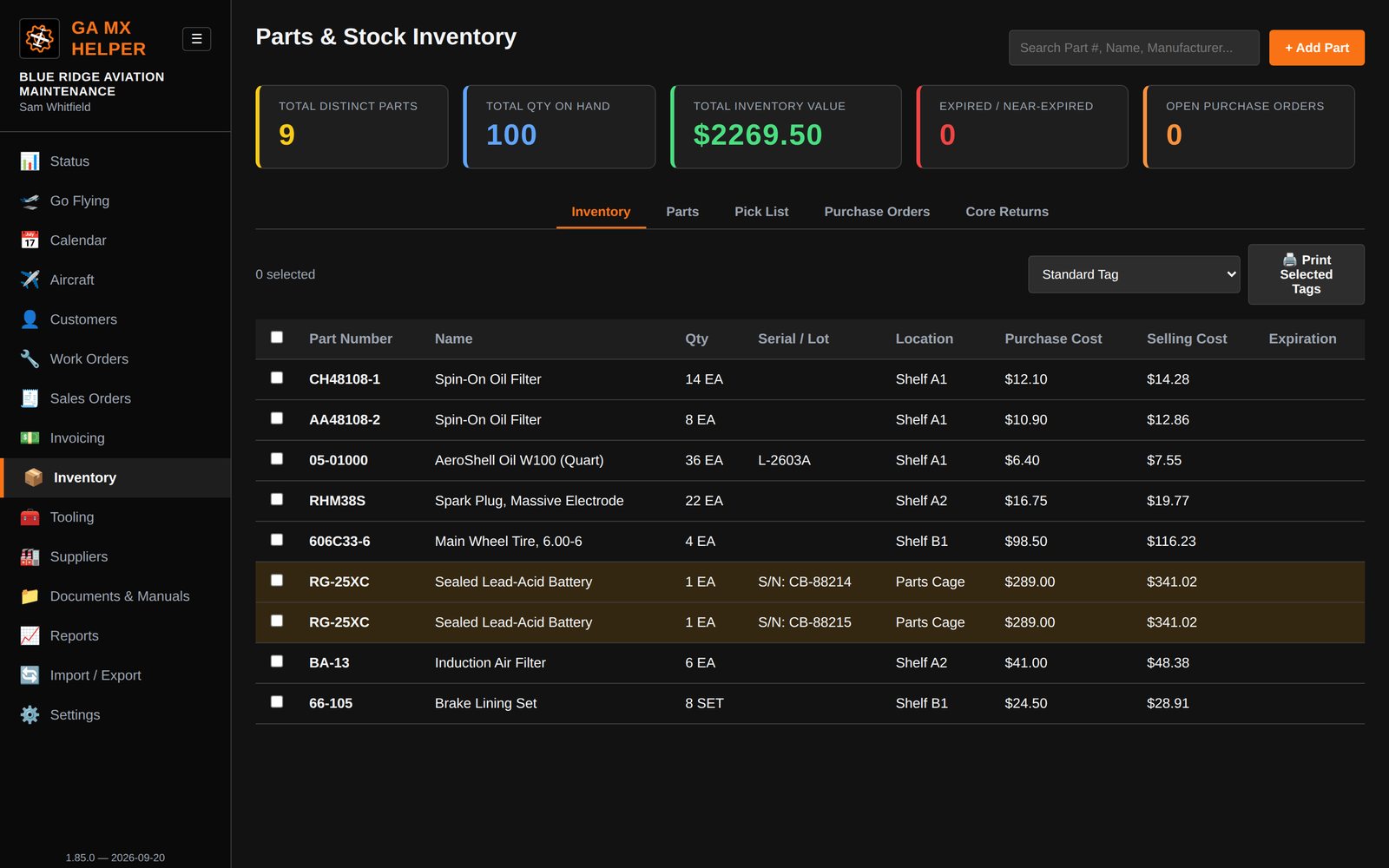
Inventory & Parts

  • Three ways to track a part: simple quantity, serialized, or lot-tracked with expirations
  • Selling price recalculates from cost and markup, or lock a manual price with one checkbox
  • Unit prices and labor rates take three decimal places, for hardware bought by the thousand at fractions of a cent
  • Low-stock and zero-stock handling built in
  • Batch tag printing — standard tags, small stickers, or full Avery sheets
Inventory
New in 1.88.0

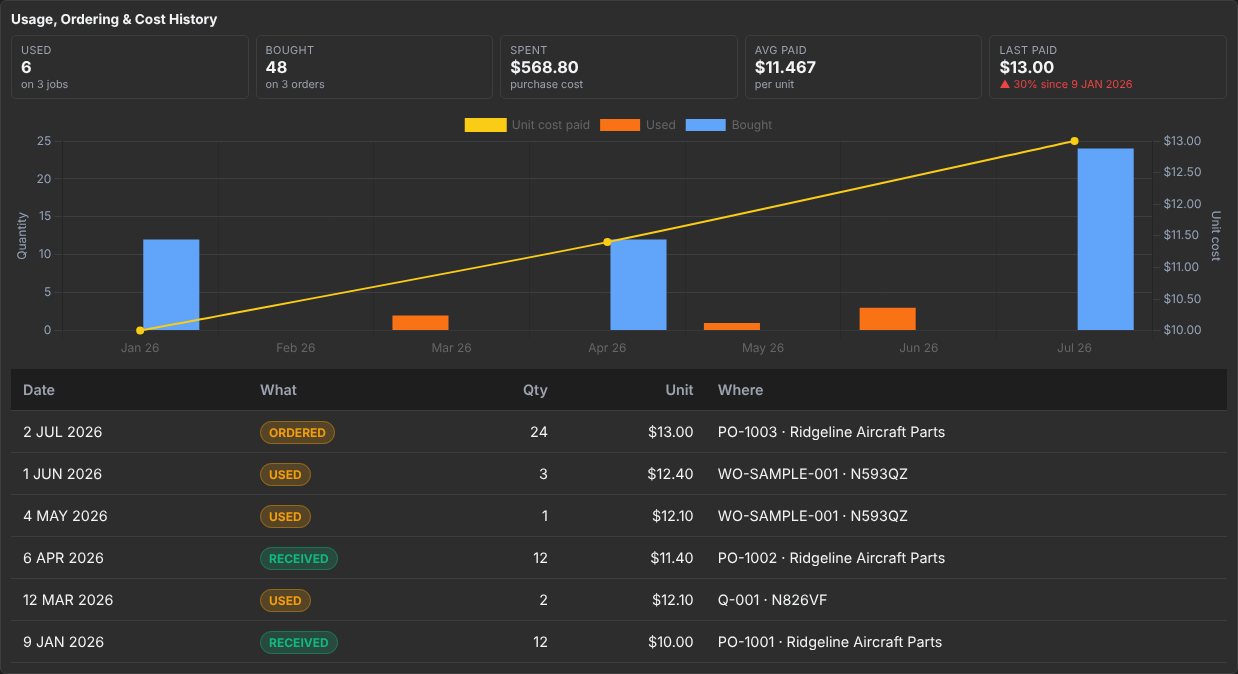
Every part's own history — usage, ordering and cost

Built from your own work orders and purchase orders, with nothing extra to enter. How many you've used and bought by month, what you've paid per unit over time, and an arrow showing which way the price has moved since the first purchase on file — the sort of drift that only shows up when it's put next to what you used to pay.

Every figure names the work order or purchase order behind it, so a number on the chart can be traced back to the job it came off. Alternate part numbers count as the same part; equivalent parts don't, since those carry their own prices.

Part usage, ordering and cost history
New in 1.88.0

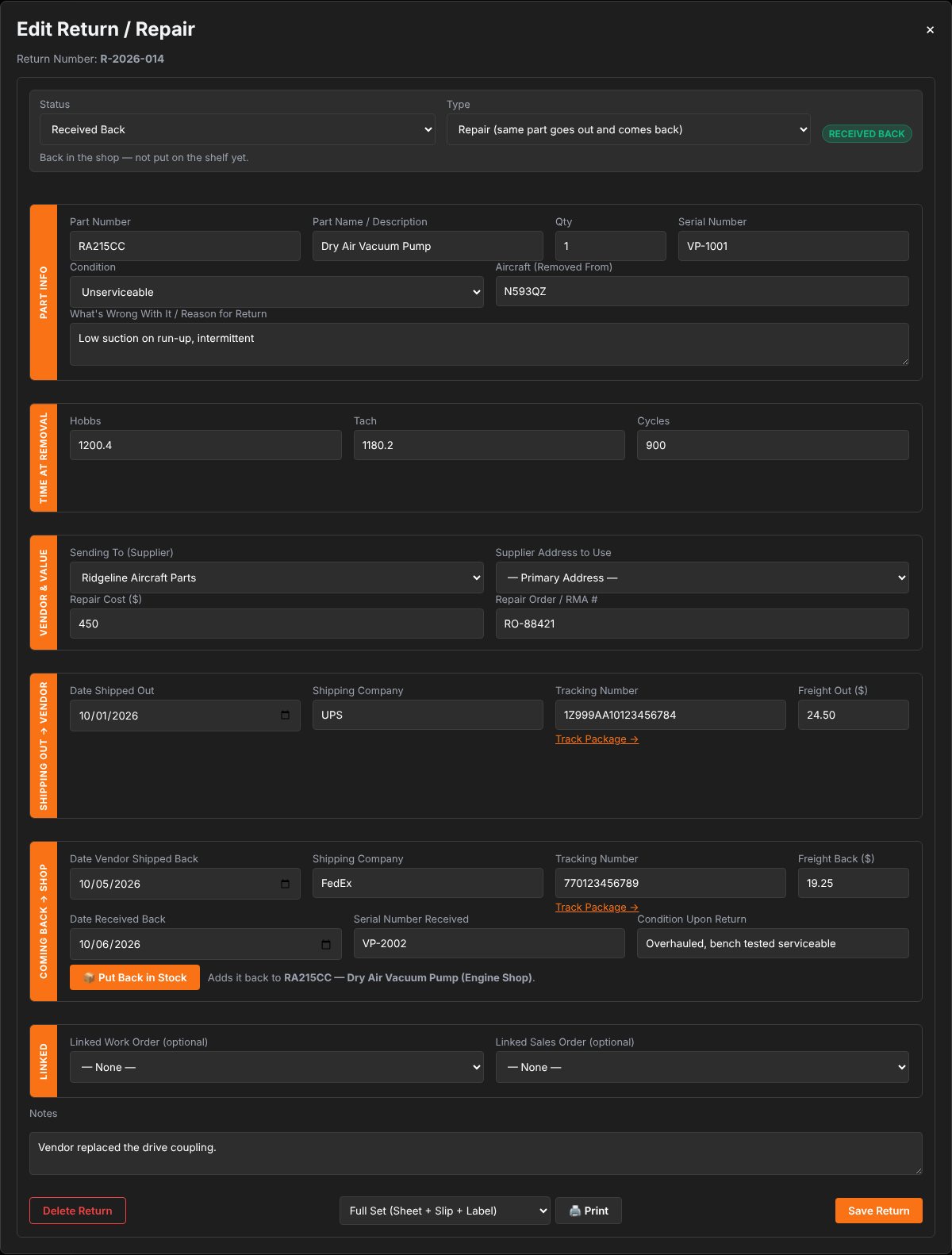
Part Returns & Repairs

A core return is a one-way trip. A repair is a round trip, and the app treats it as one: both shipping legs are tracked, out to the vendor and back again, each with its own date, carrier, tracking number and freight cost, and each with a live tracking link. The sheet that travels with the part totals the freight for the whole trip.

  • The status sits at the top with a plain-language note saying where the part actually is — out to the vendor, repaired and waiting, on its way back, or back on the shelf
  • One button puts a repaired part back in stock: quantity for ordinary stock, the returned serial for a serialized part — and if the vendor sent back a different unit, there's a field for the serial that came back
  • Print a Part Condition Tag or Part Label straight from the return, filled in and pointing the right way: Unserviceable / As Removed on the way out, Serviceable / Repaired on the way back
Part Returns and Repairs, showing both shipping legs

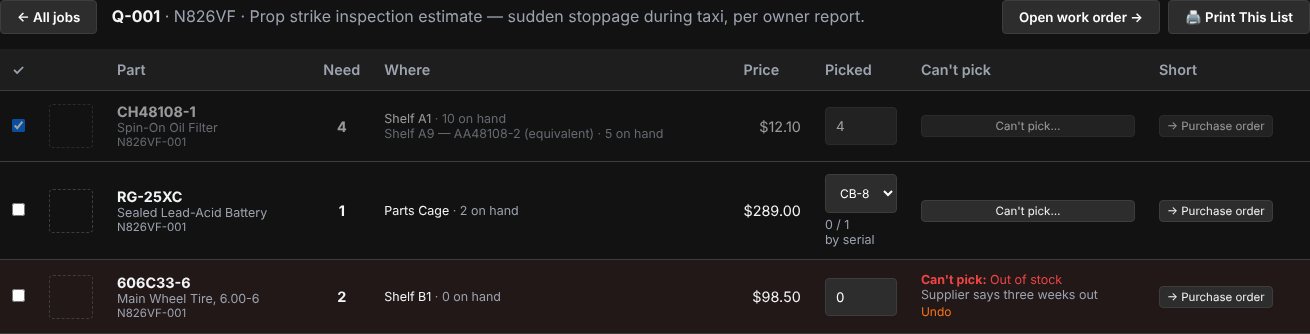
Pick List — by the job, not one long list

Jobs with parts still to pull, each showing its work order, aircraft and item count. Open one and you get the parts with their photo, part number, quantity, price, and where they are — including any equivalent part that actually has stock, which is what you want to know when the shelf is empty.

  • Tick parts off as you pull them; a partial pick takes only what you actually took off the shelf
  • Can't find it? Record why — out of stock, damaged, wrong part — and the job keeps moving
  • Turn anything you couldn't pick straight into a purchase order line, on a new or existing order
  • The job closes itself once every part is either picked or has a reason it couldn't be
Pick list for one work order
New in 1.88.0

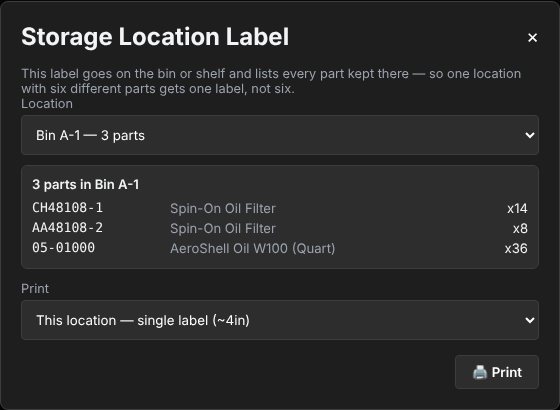
Labels that say what they're for

Three labels, each named for its job. A Storage Location Label belongs to the bin, not the part: it prints the location in large type with everything kept there listed under it, so a shelf with six different parts gets one label instead of six — and its QR code pulls up that bin's contents when scanned. A Part Condition Tag is for a serialized, repairable or transferable part. A Part Label is for disposable, one-time-use stock.

Details typed while printing a label — storage location, lot number, expiration — are saved back to the part, so the two can't drift apart. Quantity deliberately isn't: the number on a bag isn't your stock level.

Storage Location Label

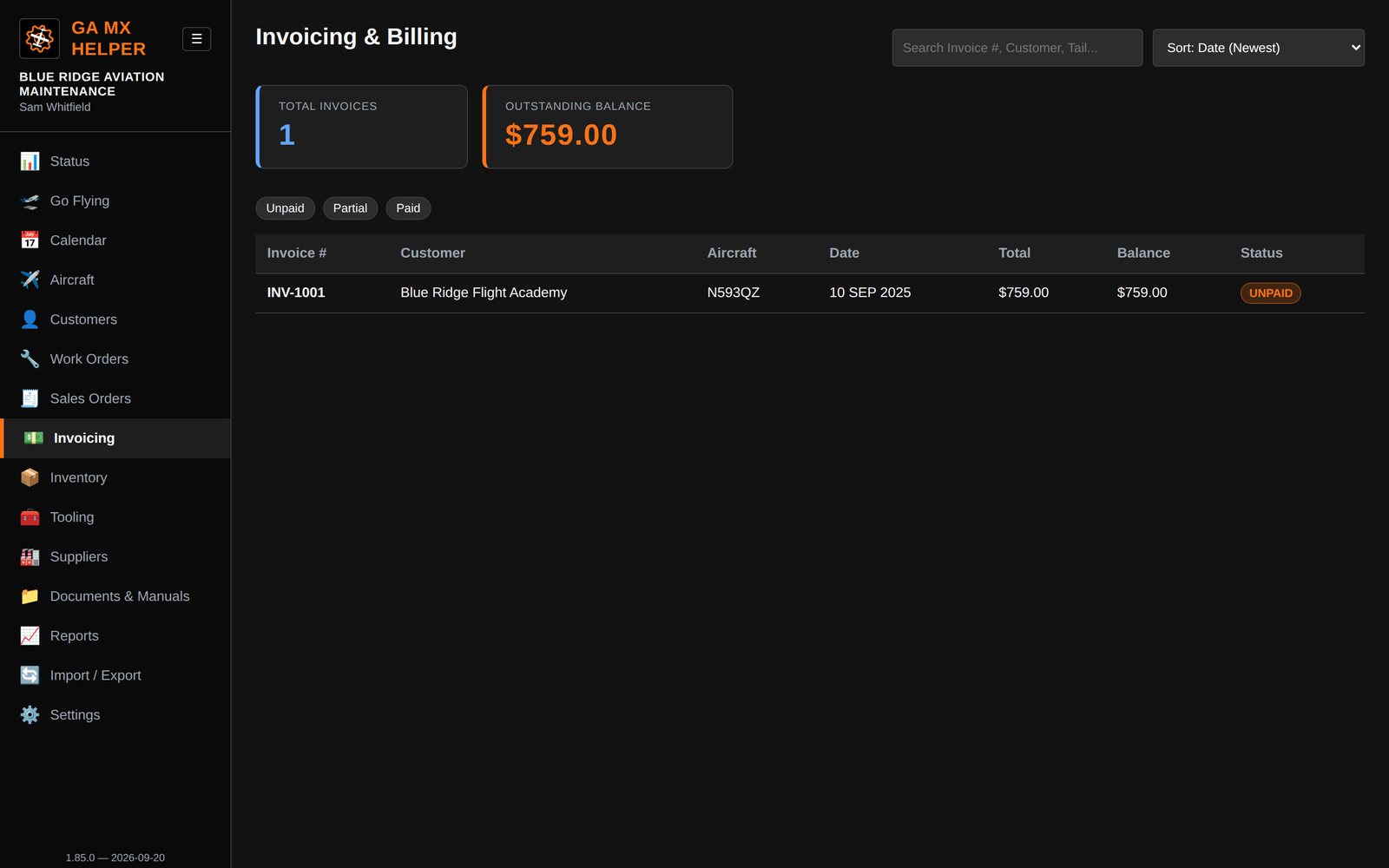
Invoicing & Sales Orders

  • Invoices generate directly from a completed work order
  • Multiple payment links (PayPal, Venmo, Stripe), each as its own QR code on the printed invoice
  • Email a quote or invoice straight from the app
Invoicing

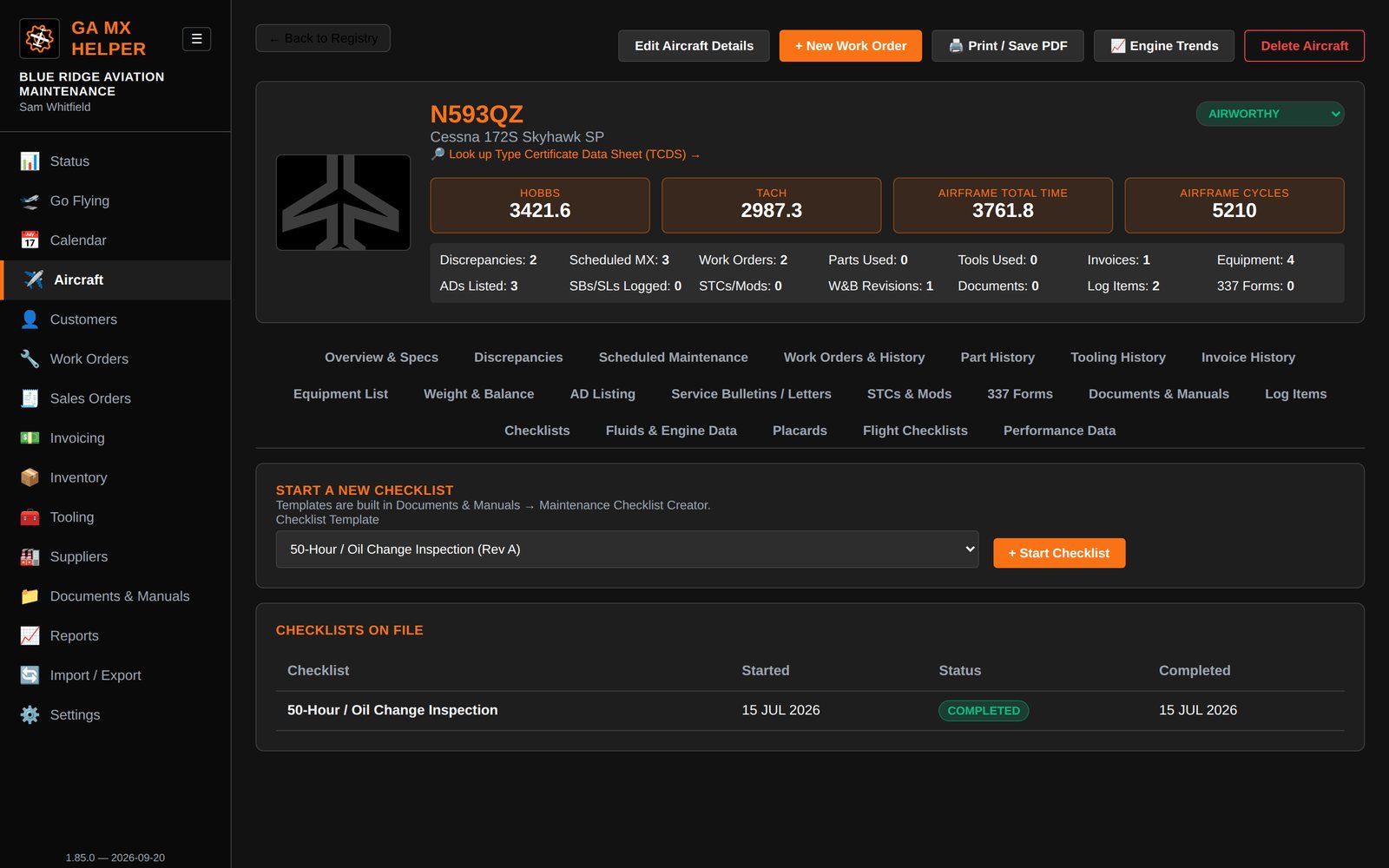
Checklists

  • Build reusable templates once, run them against any aircraft any number of times
  • Custom result fields for values, not just Pass/Fail — a compression test's cylinder readings, for example
  • Pass, Fail, and N/A color-coded on screen and on the printed checklist
Checklists

Reports

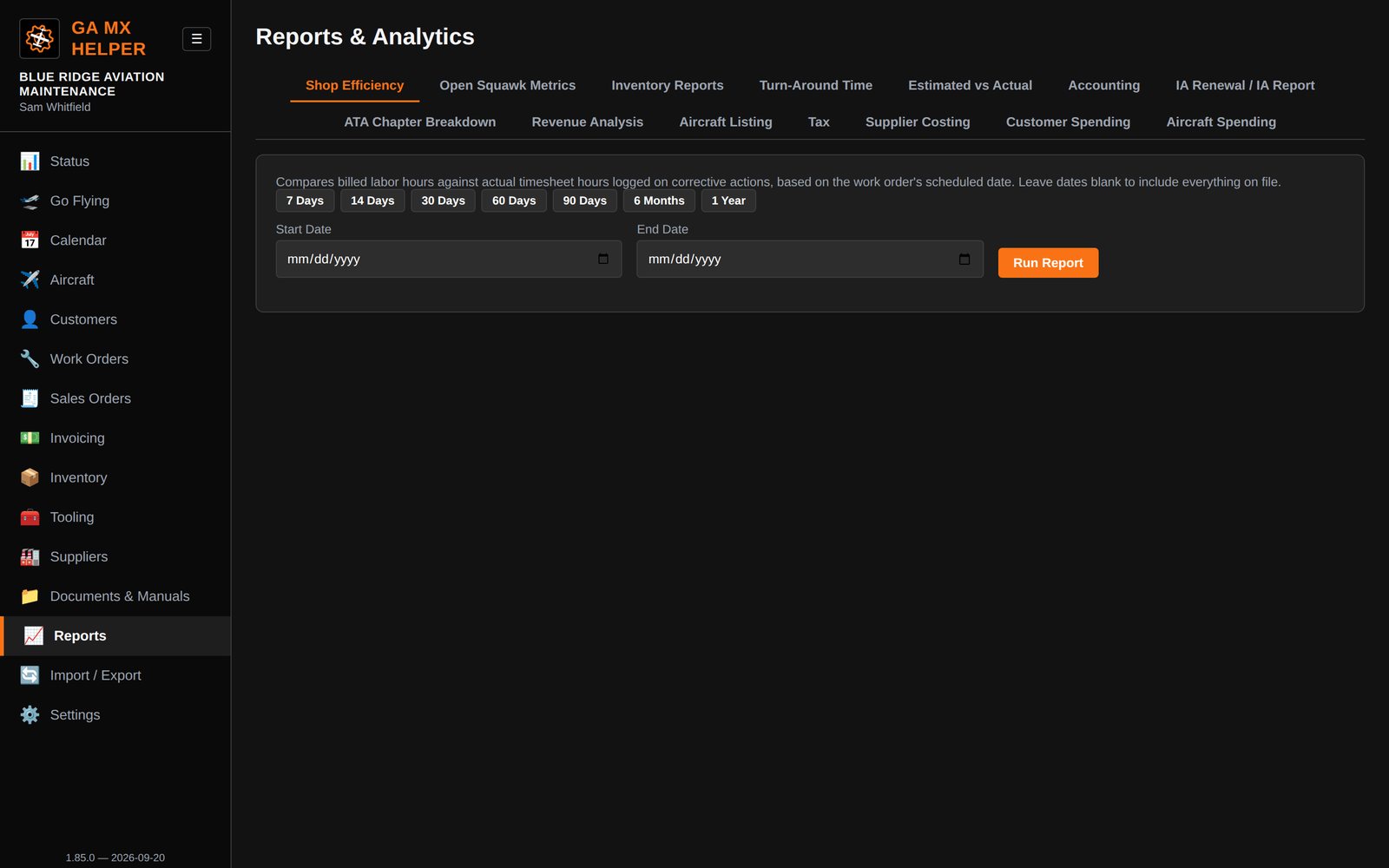
Revenue by month, ATA chapter breakdowns, tax collected, spend by supplier/customer/aircraft, IA renewal tracking, and more — all from your own data, exportable to Excel or print.

Reports
New in 2.0.0

Cards or rows — your choice, per list

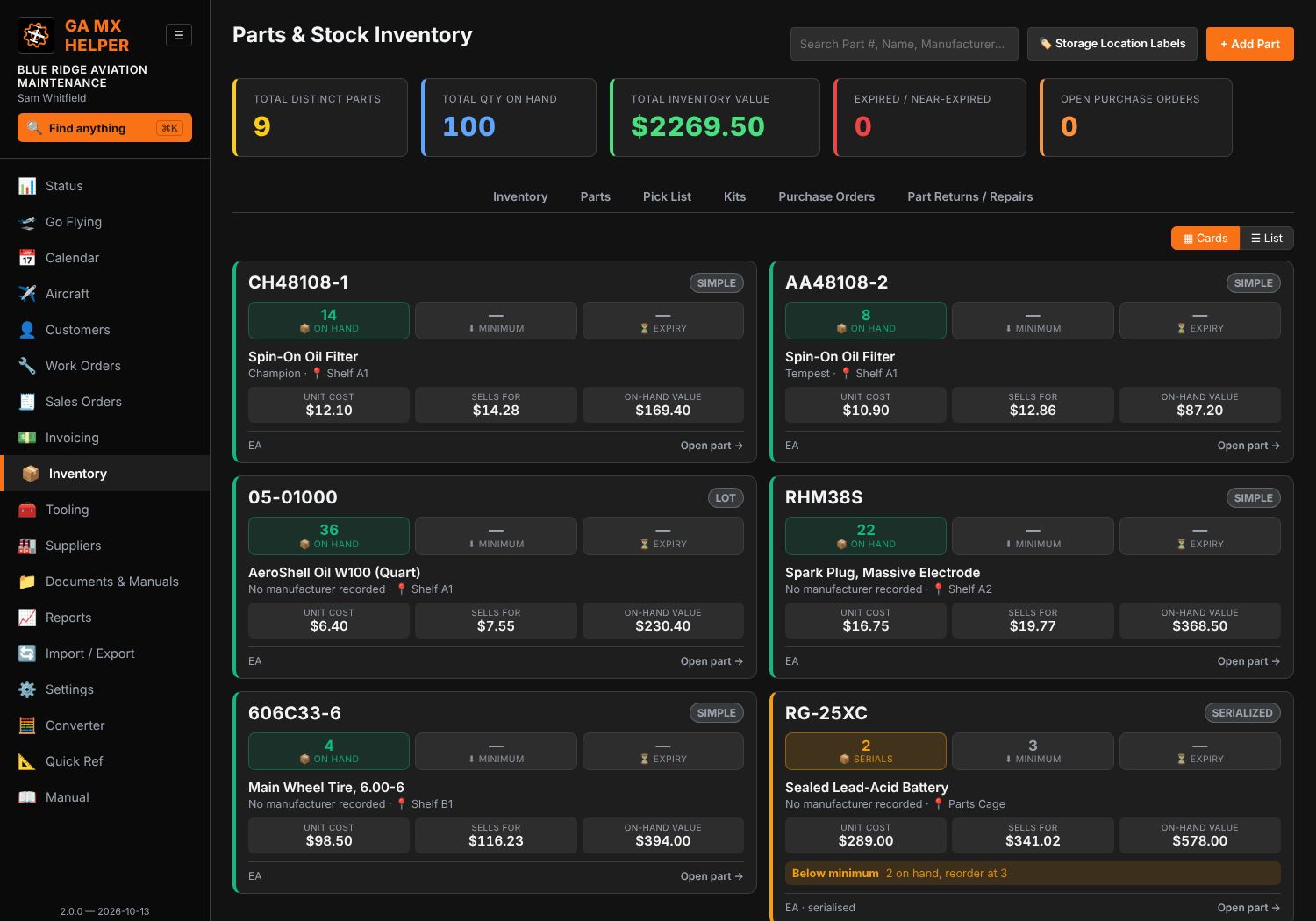
Parts, tools, work orders, sales orders, invoices, customers and suppliers can each be read as blocks instead of rows. A switch sits above each list and each one remembers its own setting — parts as cards and invoices as a list is a perfectly sensible way to work.

  • Parts — quantity against the minimum, expiry, unit cost, sell price and the value sitting on the shelf. Below minimum or expired is called out across the card.
  • Tools — the photograph, calibration state, and how many jobs it’s been used on. A tool needing no calibration says so, rather than looking compliant or overdue.
  • Work orders — squawks open against total, parts, labour hours, and how long it’s been open.
  • Invoices and customers — totals, balances, and what each customer owes across everything.

They all start as lists, exactly as they always have. Nothing moves under you — the card view is there when you want it.

Parts as cards
New in 1.99.0

The fleet at a glance

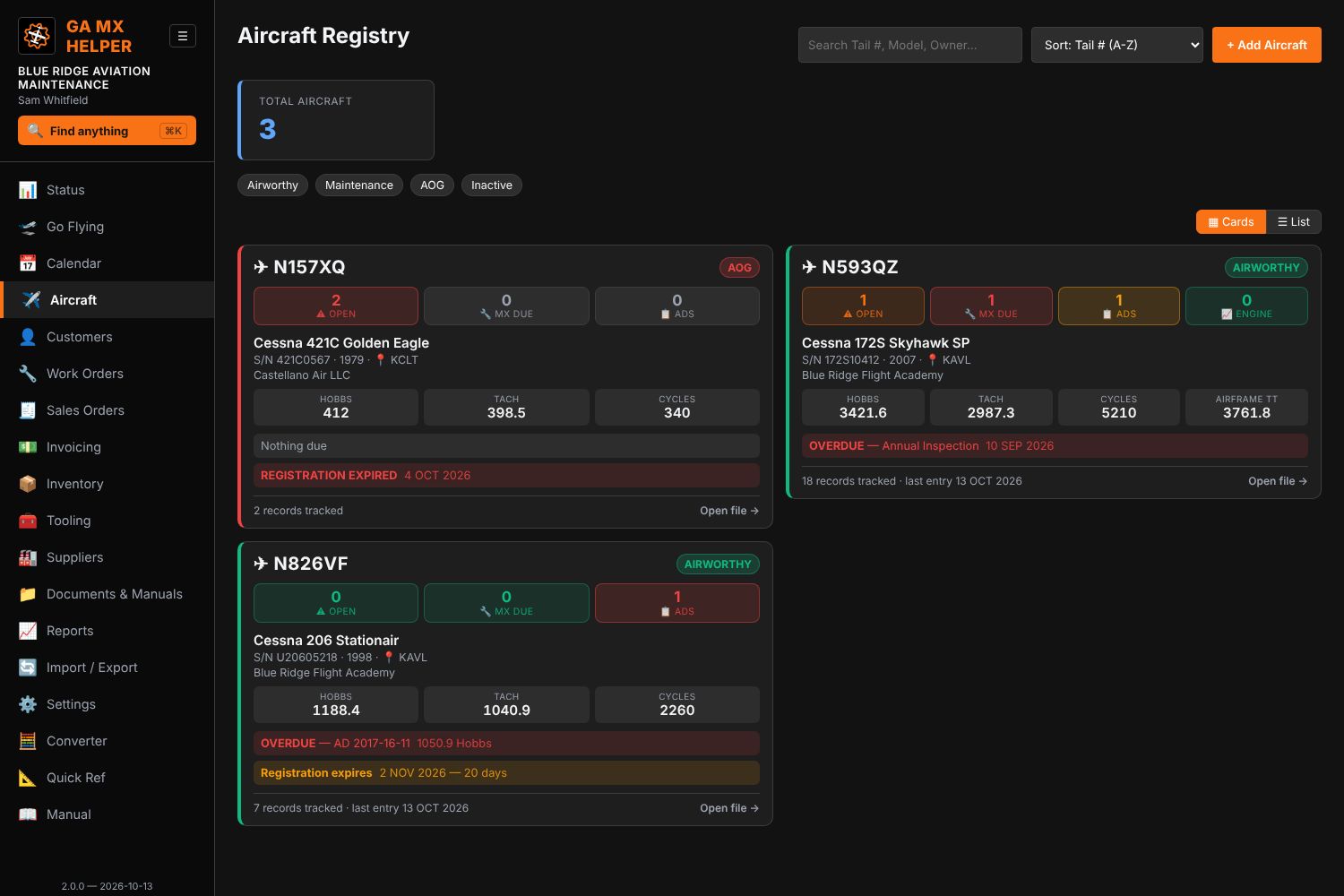
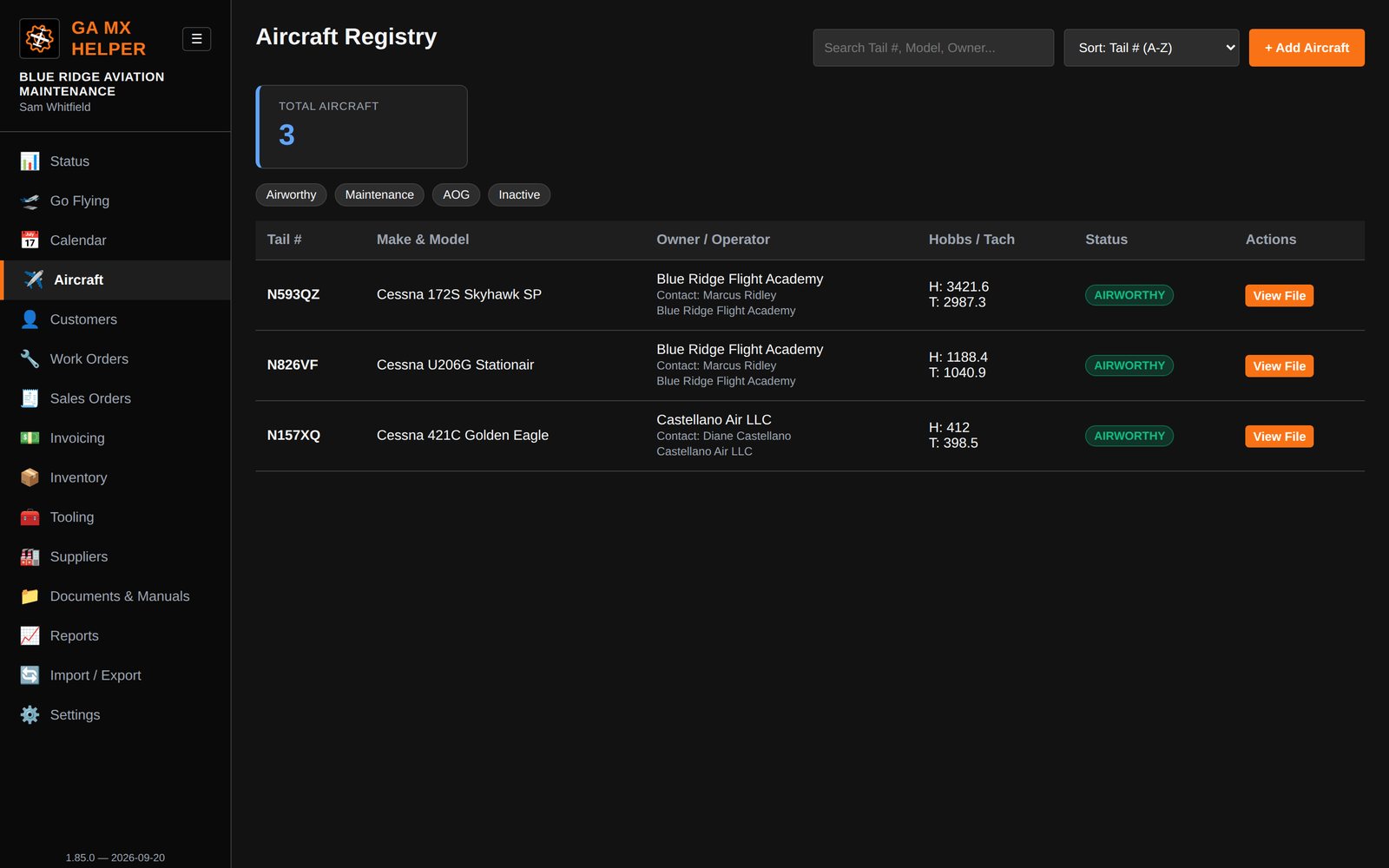
The aircraft registry is a grid of blocks, two across. A row in a table tells you what an aircraft is. A block tells you what it needs — before you open anything.

  • Status you can see from across the room. Registration and airworthiness status across the top, with the card’s edge coloured to match. The AOG aircraft is obvious on a screen full of them.
  • Boxes for what’s outstanding — open discrepancies, maintenance due, ADs, and engine readings where you use engine analysis. Red for overdue, amber for due soon, green for clear.
  • The numbers you actually look up: make, model and series, serial, year, home airport, Hobbs, tach and cycles — and the most urgent thing outstanding, by name and figure.
  • Registration expiry when it’s lapsed or close. It grounds an aircraft as firmly as a broken part, and it’s the date nobody is watching.
  • No invented reassurance. An aircraft with no engine data gets no engine box rather than a green zero — “nothing unusual” and “nobody is looking” aren’t the same thing.

The table is still a click away, for when you’re scanning forty tail numbers rather than looking at them.

Aircraft registry as cards
New in 1.98.0

The employee record — pay and history

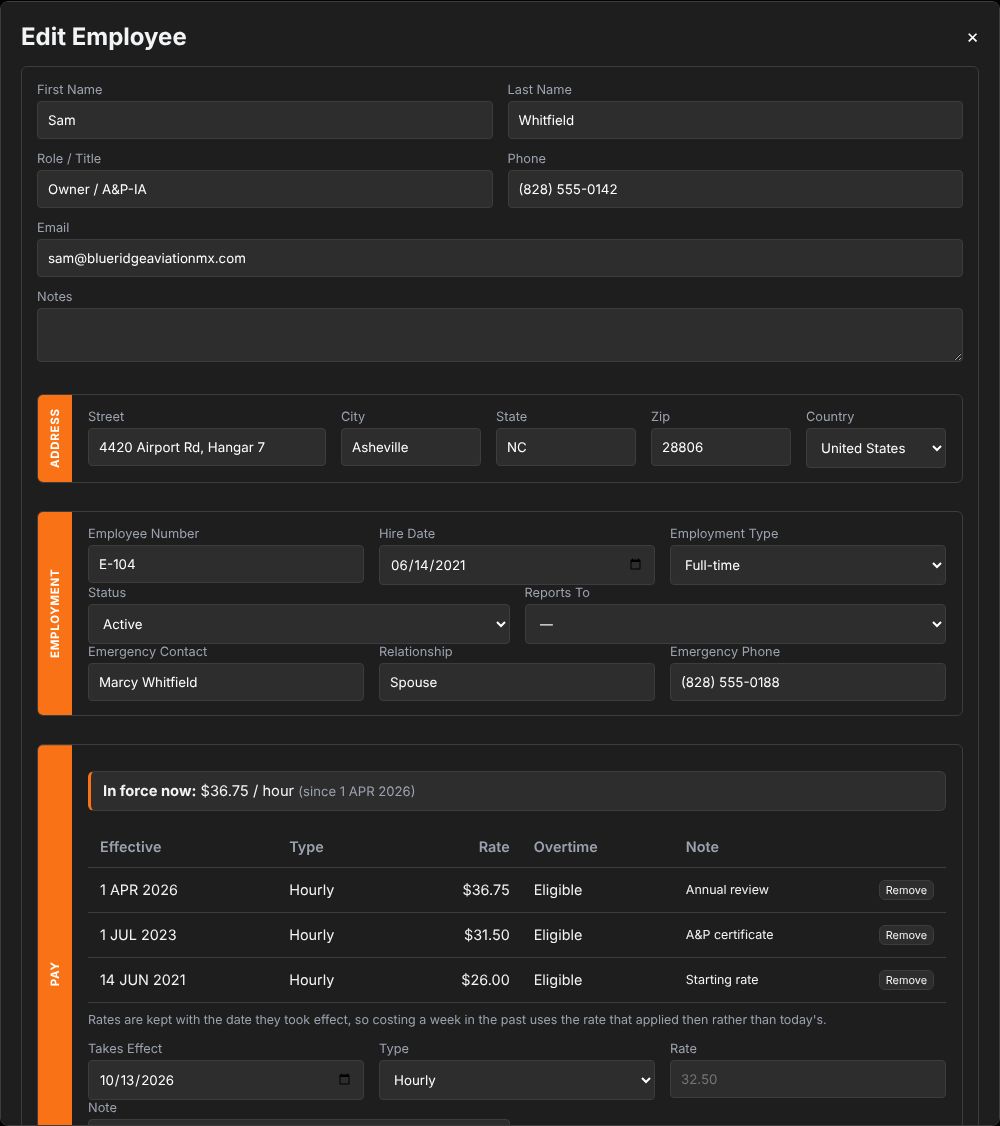
Employee number, hire date, employment type, status, who they report to, an emergency contact — and two things a shop actually needs kept properly.

  • Pay as a history, not a figure. You record a pay change and the date it takes effect; the old rate stays on the record for the weeks it was in force. A rate stored as one number rewrites the past every time it changes — cost a week from March with today’s rate and the answer is wrong, confidently and invisibly.
  • Its own permission. Without it the Pay section is hidden, the rate column is blank, and pay entries stay out of the history — with a note saying how many are hidden, rather than a silently shorter list.
  • History with the company — hired, role changes, training, certifications, reviews, leave, departures. Role and status changes, departures and pay changes write themselves in, so it’s a record of what happened rather than what someone remembered to type.
  • Gross labour cost on the time clock, each punch costed at the rate in force on its own day, with the overtime split shown. Hours on days with no rate on file are left out and reported — never costed at whatever rate is nearest.

It is not payroll and it says so: gross only, no deductions, no taxes, no net pay.

Employee record — pay history and service log
New in 1.97.0

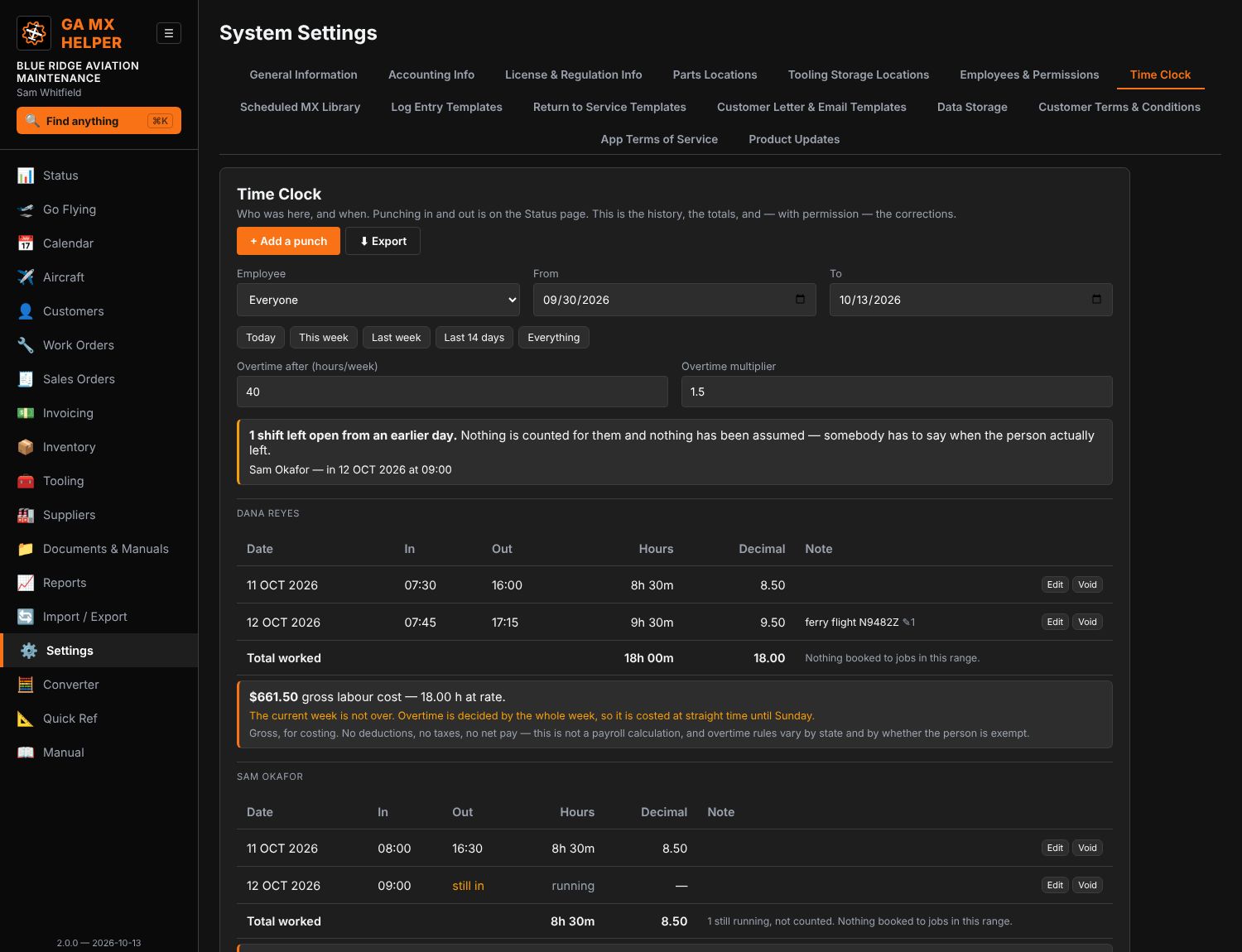
Employee time clock

A Time Clock tile on the Status page. It names whoever is signed in, says whether they’re in, and counts up while they are. One button — Punch In, then Punch Out. Switching who’s active already needs their PIN, so nobody punches in as someone else.

  • The history, in Settings — by person and by date, with totals in hours and minutes and again in decimal hours, and an Excel export. Alongside each total, the hours booked to jobs over the same range, so you can see time worked but not booked.
  • Nothing closes a shift for you. A forgotten punch-out stays open, gets flagged, and stays out of the totals — rather than being handed an invented knock-off time.
  • Overlapping punches get called out, because those hours are otherwise counted twice.
  • Corrections need permission and a reason. What it was, who changed it and why all stay on the record. Deleting is a void — the row stays, struck through and out of the totals, and can be restored.

Separate from the labour clock on a job, which records what you bill. Attendance and billable time answer different questions, and they’re supposed to disagree sometimes.

Employee time clock — punch history
Expanded in 1.96.0

Quick reference data

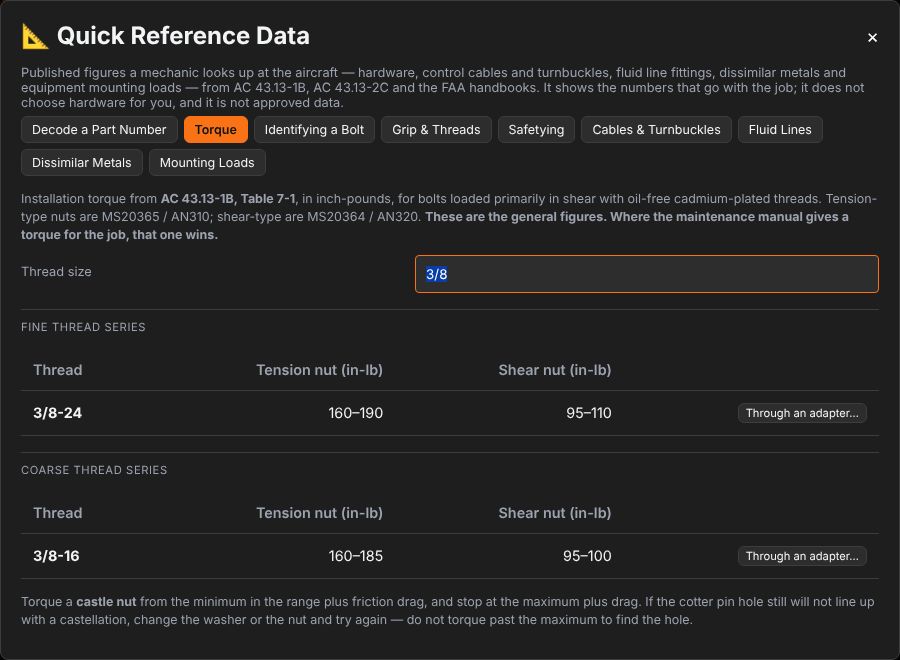
On the menu as Quick Ref, or Alt + H from anywhere. The published figures you actually look up at the aircraft — where you already are, instead of in a PDF on a shelf.

  • Torque — the full AC 43.13-1B Table 7-1, both thread series, tension and shear nuts. Type a thread size; 3/8 shows both the fine and the coarse thread, which is the distinction that matters with the bolt in your hand.
  • Through an adapter… on every row hands the figure to the Converter, so you can work out the wrench setting through a crowfoot without re-typing it.
  • Identifying a bolt — what the head markings mean, and which nut goes with which bolt.
  • Grip & threads and Safetying — the 1/8 inch washer limit, one thread through the nut, never reusing a cotter pin.
  • Cables & turnbuckles — the safetying guide by cable size: single or double wrap, wire diameter, material. Where several combinations are permitted it shows all of them, because the published guide doesn’t rank them.
  • Fluid lines — the flared fitting table by tube size or dash size: nut torque for aluminium and steel, hose end fittings, minimum bend radii. And the rule people get wrong — flareless fittings aren’t torqued at all, they get one flat on the hex.
  • Dissimilar metals — which of two metals corrodes, how far apart they sit in the galvanic series, and how to protect the joint. Including the aluminium groupings, because two aluminium alloys can be dissimilar metals.
  • Mounting loads — put in the weight of a box and get the static test load in each direction, with the three-second hold and the checklist to work through before you sign.

Every figure comes from a document the FAA publishes — AC 43.13-1B, AC 43.13-2C, the AMT handbooks — and each panel names the table or figure it came from so you can check it. It shows the data and explains it; it doesn’t pick hardware for you, and it isn’t approved data.

Quick reference data — torque table
New in 1.91.0

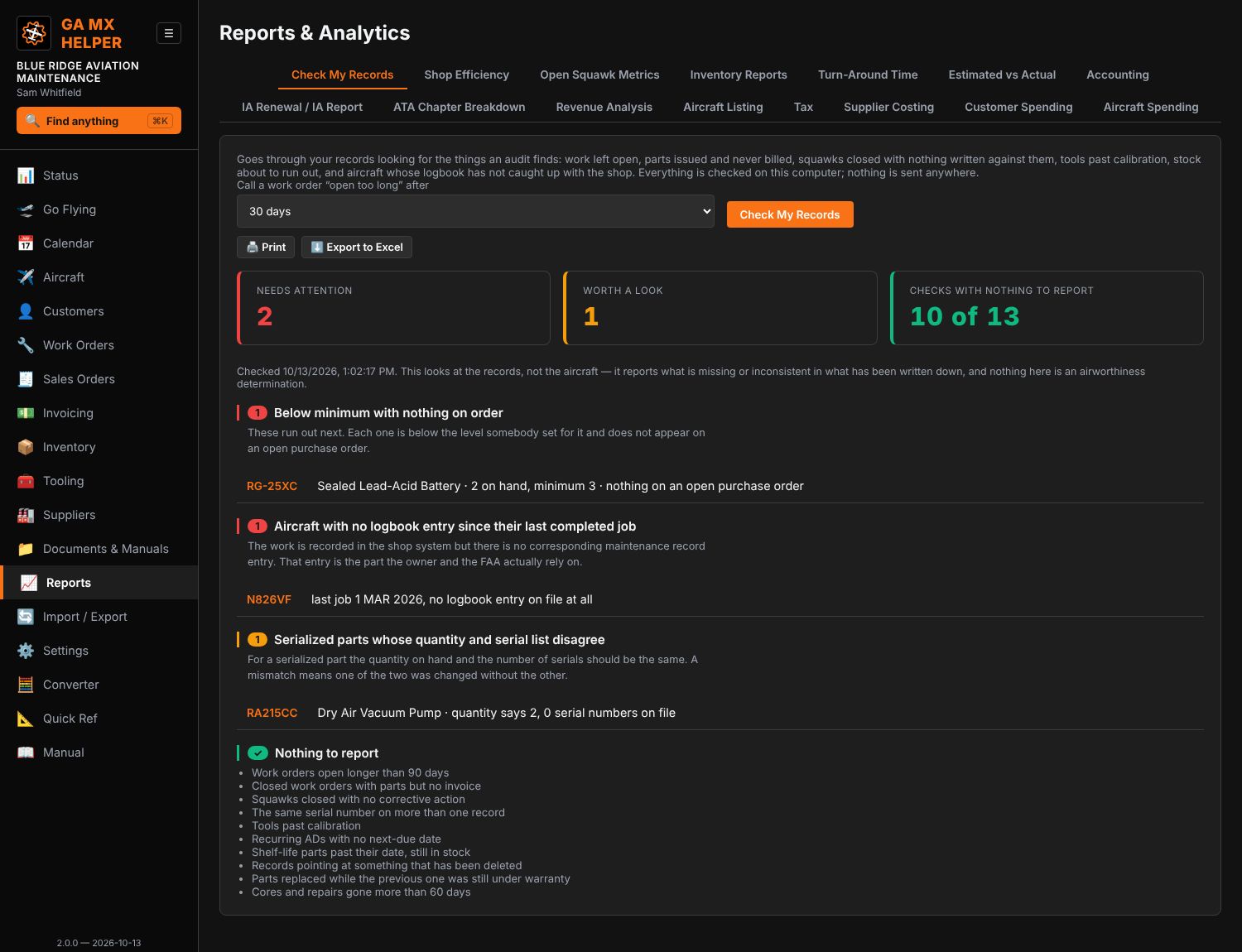
Check My Records — the pass you’d otherwise do on paper

One button runs thirteen checks across the whole shop and tells you what an audit would find: work orders left open too long, closed jobs with parts but no invoice, squawks closed with nothing written against them, the same serial on two records, stock below minimum with nothing on order, tools past calibration, recurring ADs with no next-due date, shelf-life parts past their date, aircraft whose logbook hasn’t caught up with the shop, serial counts that disagree, records pointing at something deleted, parts replaced while still under warranty, and cores gone more than sixty days.

Every finding opens the record it found. It prints, and it exports to Excel. Everything is checked on your own computer — nothing is sent anywhere.

Check My Records report
New in 1.91.0

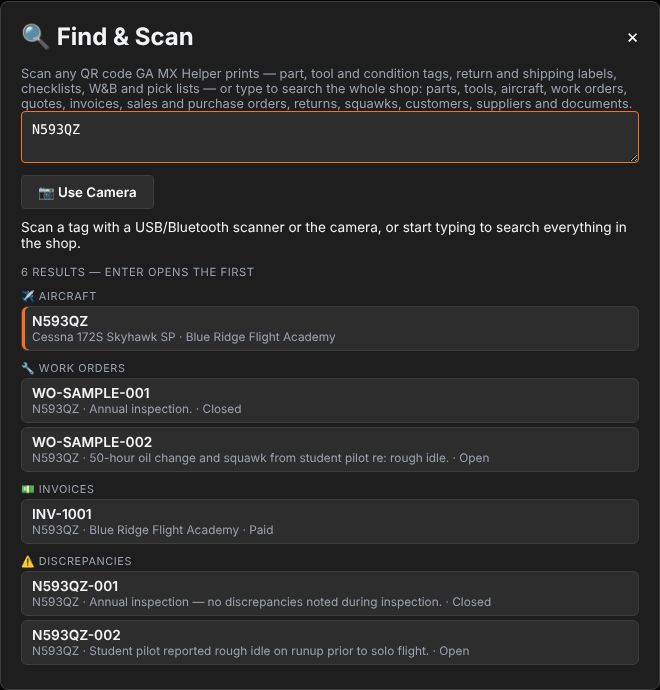
Find — one box for the whole shop

Ctrl/Cmd + K, or Find on the menu. It searches parts, tools, aircraft, work orders, quotes, invoices, sales and purchase orders, returns, squawks, customers, suppliers, documents and people all at once, grouped by kind with the closest match first.

You no longer need to know which tab a record lives in before you can look for it. Scanning still works exactly as before — the app tells a barcode scanner from a person by how fast the characters arrive.

Shop-wide find
New in 1.91.0

When is it actually due?

“Due at 3022.3 hours” depends entirely on how much the aircraft flies. The app works that out from the readings you’ve already logged and shows a date — on the aircraft page, in the Status due-soon list and on the Calendar.

It won’t guess where it shouldn’t: a calendar item is already a date, cycles are not flying hours, and with only a reading or two to go on it says the figure is rough. A projection is always labelled as one, and never written in as a due date.

Projected due dates on an aircraft
New in 1.91.0

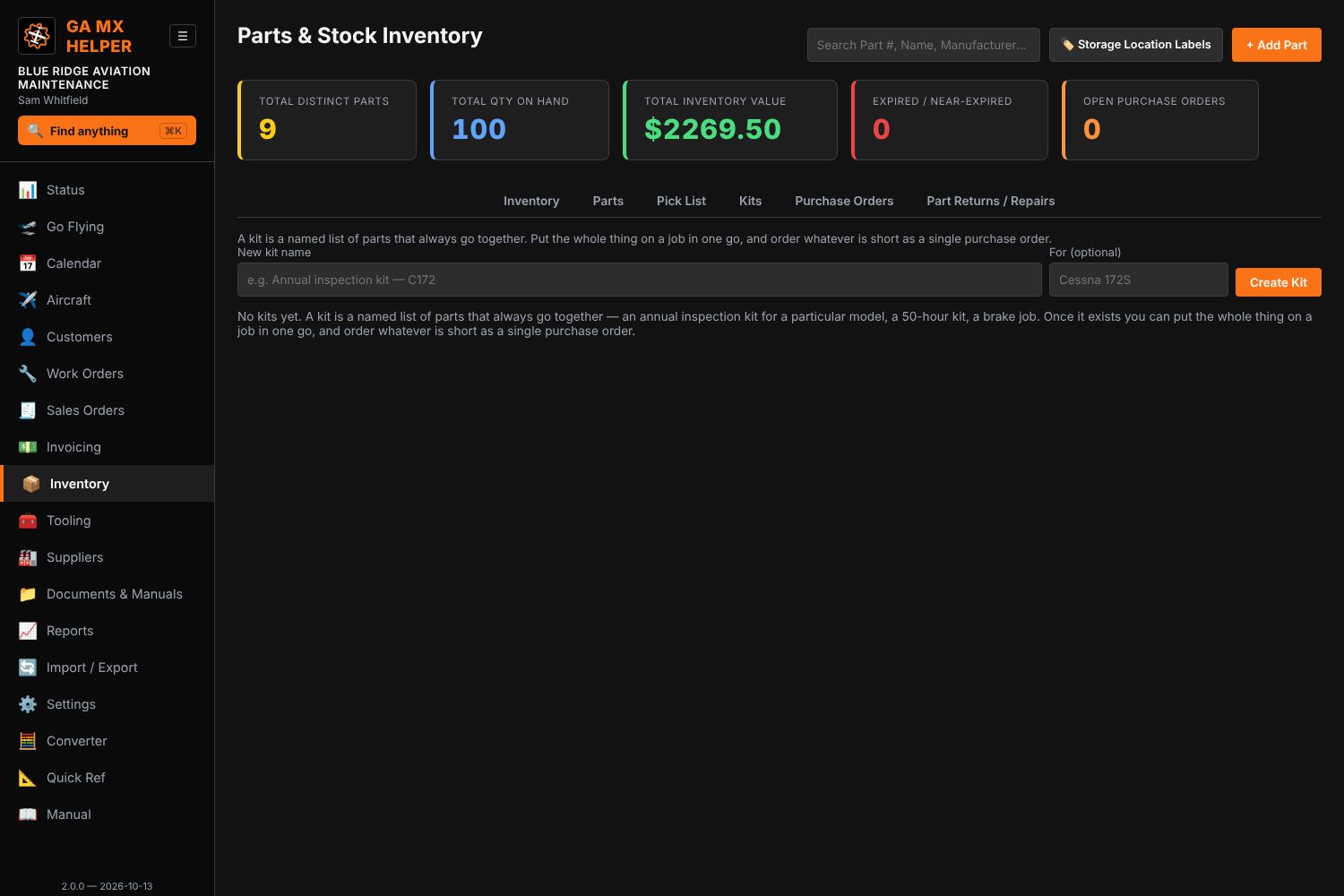
Kits

A named set of parts you use together — an annual kit, a 100-hour kit, a hose change — put on a job in one action instead of eight lines by hand.

The kit shows what’s short and, separately, what isn’t in inventory at all. Short lines go on the job as On Order without touching stock, rather than being quietly dropped. One button turns the shortages into a purchase order, and there’s a pick sheet to print.

Parts kits
New in 1.91.0

The Owner Status Page

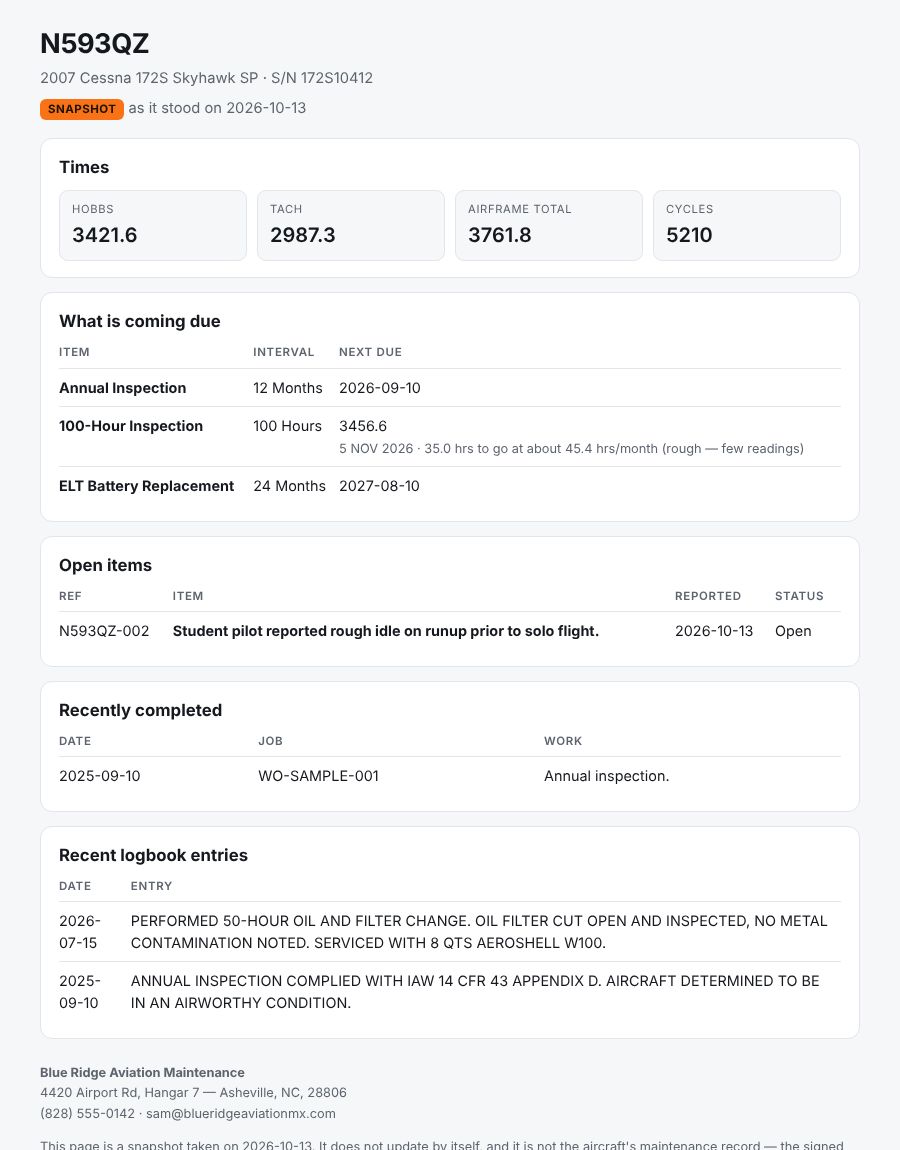
Owners ask where their aircraft is. One button writes a single file you can email them: times, what’s due next, what’s open, what was recently done. It opens on any phone or computer, needs no internet and nothing installed, and it’s read-only.

It carries no labour rates, no hours, no part costs, no currency figures at all, no supplier names and no other aircraft. Preview it before you send it.

Owner status page
New in 1.90.0

Converter — units and shop arithmetic

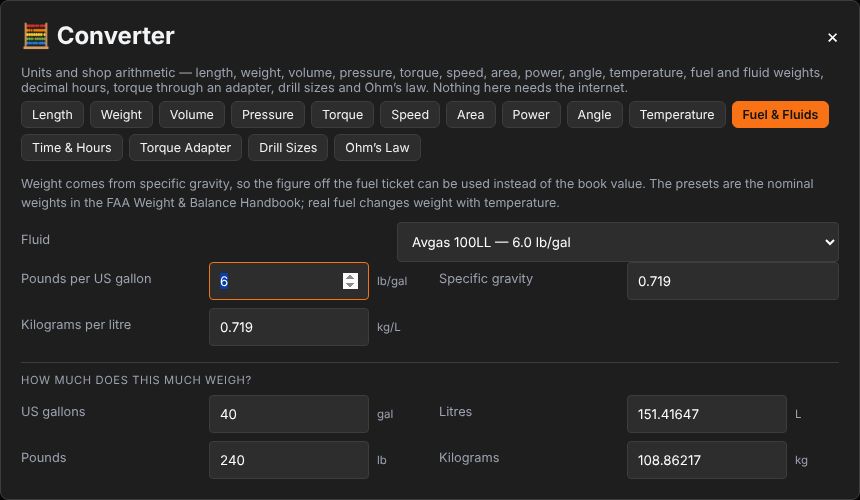
On the menu, or Alt + C from anywhere without leaving what you were doing. Length, weight, volume, pressure, torque, speed, area, power, angle and temperature — type into any box and the whole table follows.

Plus the arithmetic a shop actually repeats: fuel and fluid weights at the FAA Weight & Balance Handbook’s figures (and your own, off the fuel ticket), decimal hours to hours and minutes, what to set a torque wrench to when a crowfoot moves the socket out, number/letter/fractional drill sizes in one chart, and Ohm’s law. Included with every license, in both apps, and it needs no internet.

The converter
New in 1.91.0

Photos, warranty, and two computers sharing one folder

  • Photos on a squawk — before and after, from a file or straight from the camera, each with a caption. They print on the work order and can go on the invoice, which is where they settle an argument about what was actually wrong.
  • Warranty on the parts you fit — each part records when it went on and how long it’s covered. Fit the same part to the same aircraft again while the one it replaced was still in its term and the app tells you then and there, in time to claim rather than after the invoice has gone.
  • It notices when two computers share one folder — if the data file changed on disk since you opened it, you get a banner and three choices: keep yours, take theirs, or save yours separately. Saving stops until you decide, instead of quietly writing over someone else’s work.
  • Backups keep a file per day, pruned to a period you choose, and a backup that fails says so instead of failing silently.
Work orders

Built for Real Shop Operations

  • Tools carry their own photo, calibration intervals and due dates, and usage history by work order
  • Multiple employees with individual PINs for sign-offs
  • Customer and supplier terms & conditions, generated from your own shop info
  • Full backup and restore, connected to a folder on your own computer you control
Aircraft Registry

Ready when you are

One-time purchase, no subscription. See the Changelog for what's new in every version.